Resetting Edge takes less than two minutes: open the browser, click the three-dot menu, go to Settings > Reset settings, and select Restore settings to their default values. Confirm the prompt to instantly clear your startup tabs, new tab layout, search engine, pinned tabs, and temporary site data.
Sync settings decide whether this process fixes your problem or brings it right back. If cloud sync stays active, corrupt data stored on your account can download again the moment you sign in.
The single biggest mistake before starting is forgetting to export personal data. While your bookmarks and saved passwords stay safe during a standard reset, any open tabs and temporary session logins vanish immediately.
Restoring Default Browser Settings
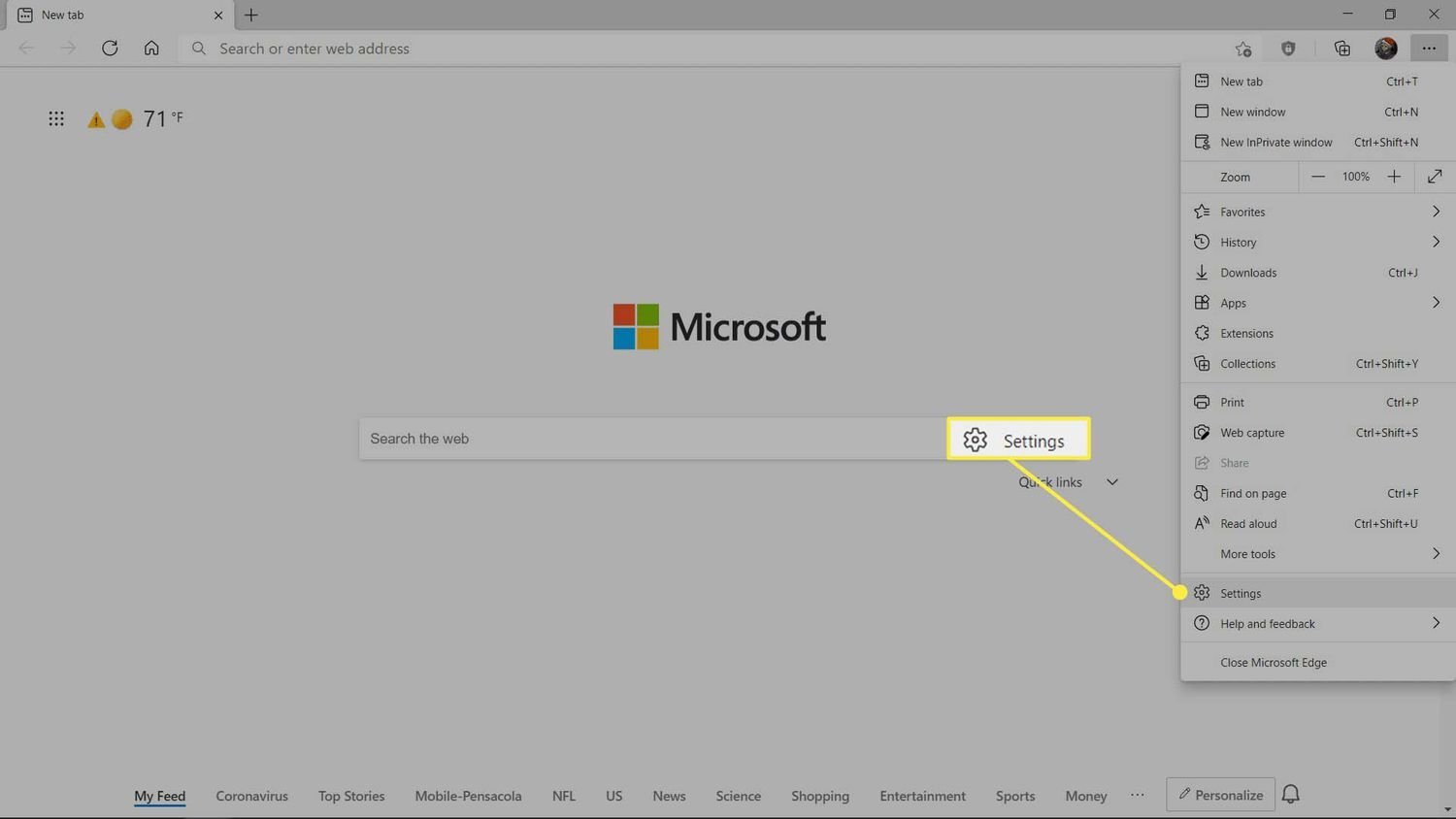
- Open Microsoft Edge on your computer and click the three dots in the top-right corner to open the main menu.
- Select Settings from the bottom of the list, or type
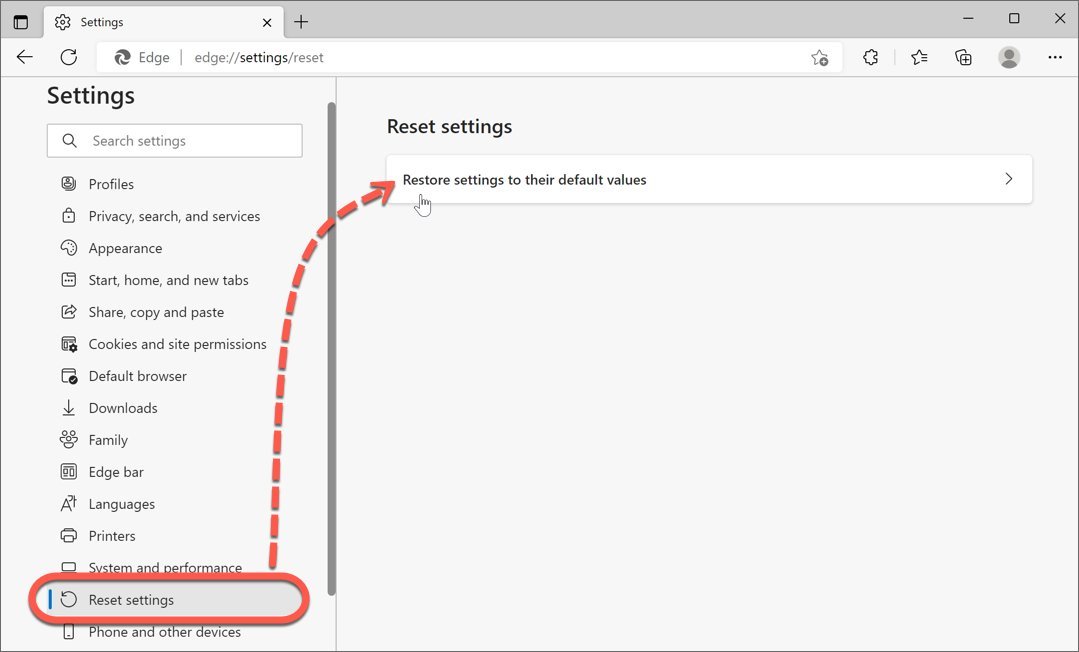
edge://settings/resetstraight into your address bar to jump there directly. - Click Reset settings in the left navigation sidebar.
- Click the arrow next to Restore settings to their default values to open the confirmation box.
- Review the warning dialog, which lists what will change, then click the blue Reset button to finish. Tip: If you use cloud sync, turn it off under your profile settings before clicking reset, or corrupt cloud data may sync right back.
- Close all open browser windows completely and start the program again to load the clean configuration.
This built-in tool solves browser crashes and unwanted pop-ups, but this isn’t for someone trying to erase their entire browsing history or delete synced Microsoft account records. If unwanted toolbars or redirects persist after a clean restart, read the Microsoft Support guide on Edge settings to repair the installation through Windows Settings instead.
How Long It Takes
Resetting the program is usually instant, but total time depends on how much cached data you have stored.
If the reset process hangs or freezes, open your operating system’s task manager, force-close the application, and run a repair through your system apps menu instead.
How to Tell When It’s Done
The reset completes the second the confirmation box disappears and your settings page stays open. You can confirm success through three clear signs: your startup page switches back to the default MSN layout, all installed extensions show as disabled in edge://extensions/, and pinned tabs disappear.
The honest limit is that this tool only fixes software settings, not hardware conflicts. The definitive test is opening a clean tab: if your custom search engine reverted to Microsoft Bing and your third-party toolbar icons are gone, the default configuration is fully restored.
Mistakes That Ruin It
- Leaving extensions turned on afterward. Corrupt extension files often trigger the original crash, so re-enabling every add-on at once brings the bad behavior right back. Turn your add-ons back on one by one to find the faulty extension.
- Skipping a complete app restart. Windows frequently keeps background browser processes running, which prevents the new defaults from applying cleanly. End all related processes or reboot your computer to ensure a clean slate.
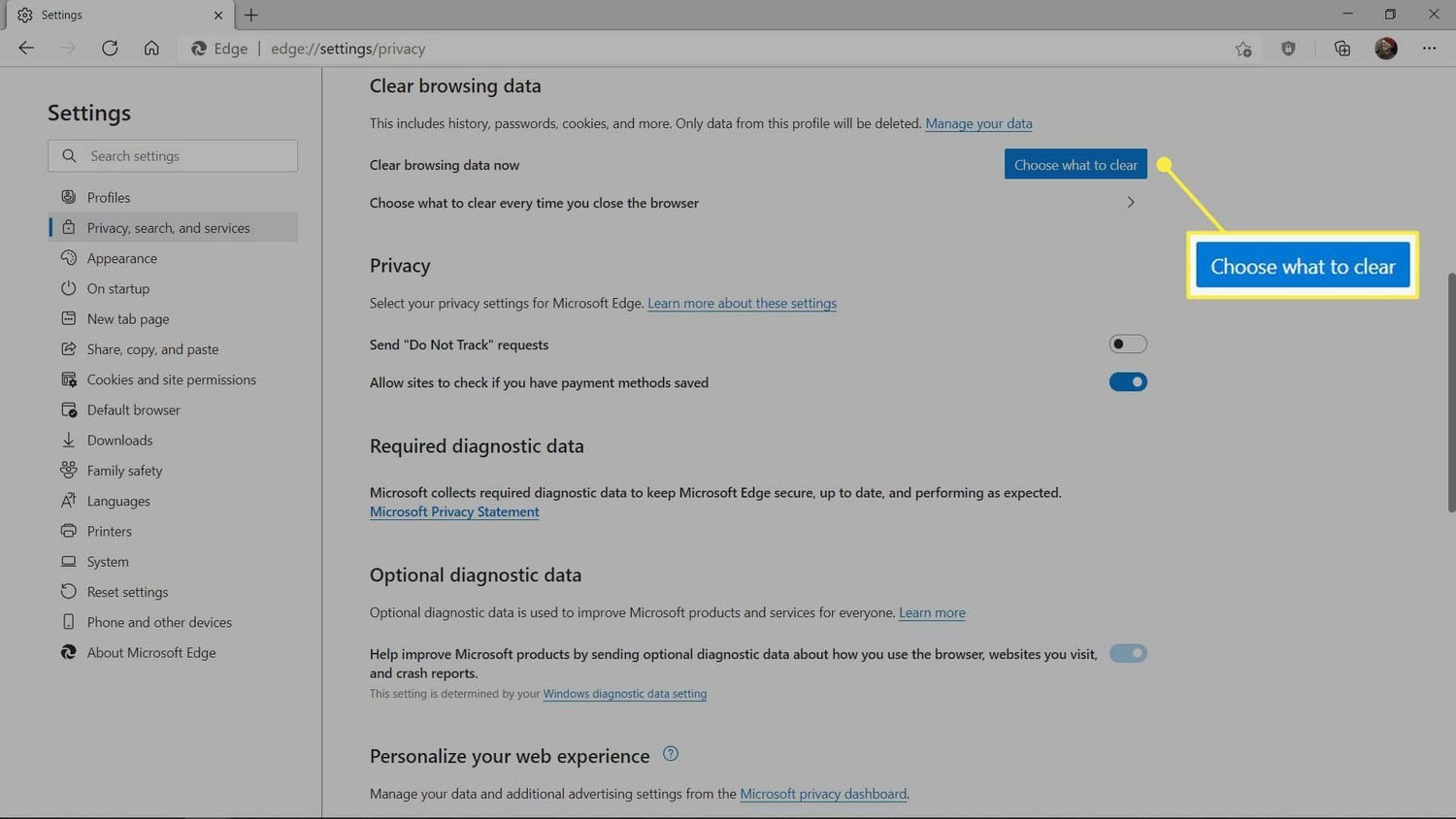
- Confusing a reset with cache clearing. A reset disables extensions and resets your homepage, while clearing cache only removes images and cookies. If you just want to fix a slow web page, clear your browsing data instead of wiping your settings.
Frequently Asked Questions
Will Resetting Edge Delete My Passwords?
No. The default reset specifically protects your saved passwords, form autofill information, and favorites. It only removes temporary cookies, site permissions, pinned tabs, and startup pages, while disabling your installed extensions.
Does a Reset Delete My Bookmarks?
No. Your bookmarks and favorites remain completely untouched in the browser menu. If you want an extra layer of safety before troubleshooting, export your favorites to an HTML file through the Edge favorites management page.
Why Did My Extensions Turn Off?
The reset process automatically turns off all extensions to stop malicious or broken add-ons from crashing the program. Your extensions aren’t deleted from your hard drive, so you can manually enable them again in the extensions menu.
Can I Undo a Settings Reset?
No. Once you click the reset button, you can’t restore your previous settings with an undo command. You’ll have to re-enable your add-ons, set your custom homepages, and choose your preferred default search engine by hand.
Is It Safe to Reset Edge on Windows 11?
Yes. It’s entirely safe because the action only resets user preferences within the app itself. It doesn’t alter your operating system files, delete downloaded personal documents, or harm your linked Windows user account.
Related guides