To reset your Nest doorbell completely, press and hold the reset pinhole button on the back of the device for about 10 to 12 seconds until the status light turns solid yellow and chimes. This action erases your Wi-Fi details, camera history, and personalized settings immediately.
A full reset restores original factory software, but it deletes all saved video events permanently. If you simply want to fix a frozen stream, a standard restart preserves your data, while a factory reset wipes everything clean.
People often start pressing buttons before unlinking the device from their mobile profile. You must remove the unit from the Google Home app or Nest app first, or the doorbell remains locked to your account and won’t let anyone set it up again.
Resetting Your Doorbell Hardware
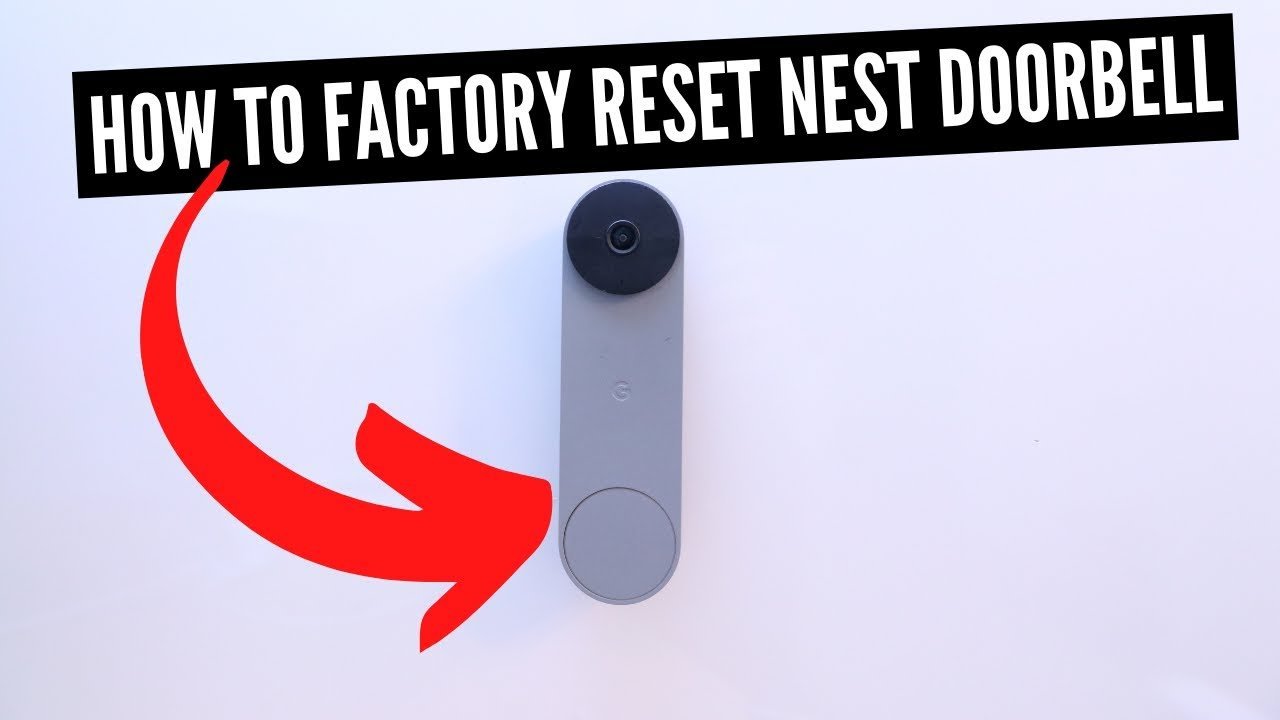
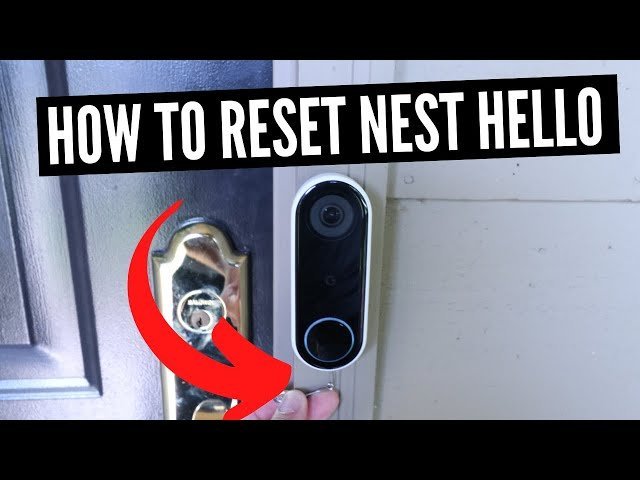
- Remove the doorbell from its wall mount using the release tool or an unfolded paperclip inserted into the bottom hole.
- Locate the small reset button on the back casing near the bottom or center terminal screws.
- Press and hold the reset pin for 10 to 12 seconds with a sturdy pin or paperclip. Tip: Don’t let go when the light first flashes; keep holding until the chime rings out.
- Release the button once you hear the tone and the front light ring displays a solid yellow circle.
- Wait roughly 60 seconds while the internal processor clears its storage partition and reboots itself.
- Open your mobile setup app to pair the hardware again as a fresh device. Tip: If X is a battery model, keep the charging cable plugged in during the process; if Y is a wired model, ensure the transformer breaker remains on.
This guide isn’t for older mechanical chimes or standard pushbuttons without network hardware. Always check your unit’s serial sticker if you’re unsure which generation you own, as pinhole placement varies by model — check the label on your unit’s backplate.
How Long It Takes
Resetting your device takes only a few minutes depending on power type and hardware model.
| Situation | How long | What changes it | What to watch for |
|---|---|---|---|
| Battery model (2nd gen) | 1 to 2 minutes | Battery charge level | Solid yellow light ring |
| Wired model (1st gen) | 2 to 3 minutes | Transformer voltage delivery | Blue spinning light turning yellow |
| App removal and unlink | 1 minute | Home Wi-Fi response speed | Disappearance from home screen |
If the light stays blank for over five minutes, verify your power source or charger before trying again.
How to Tell When It’s Done
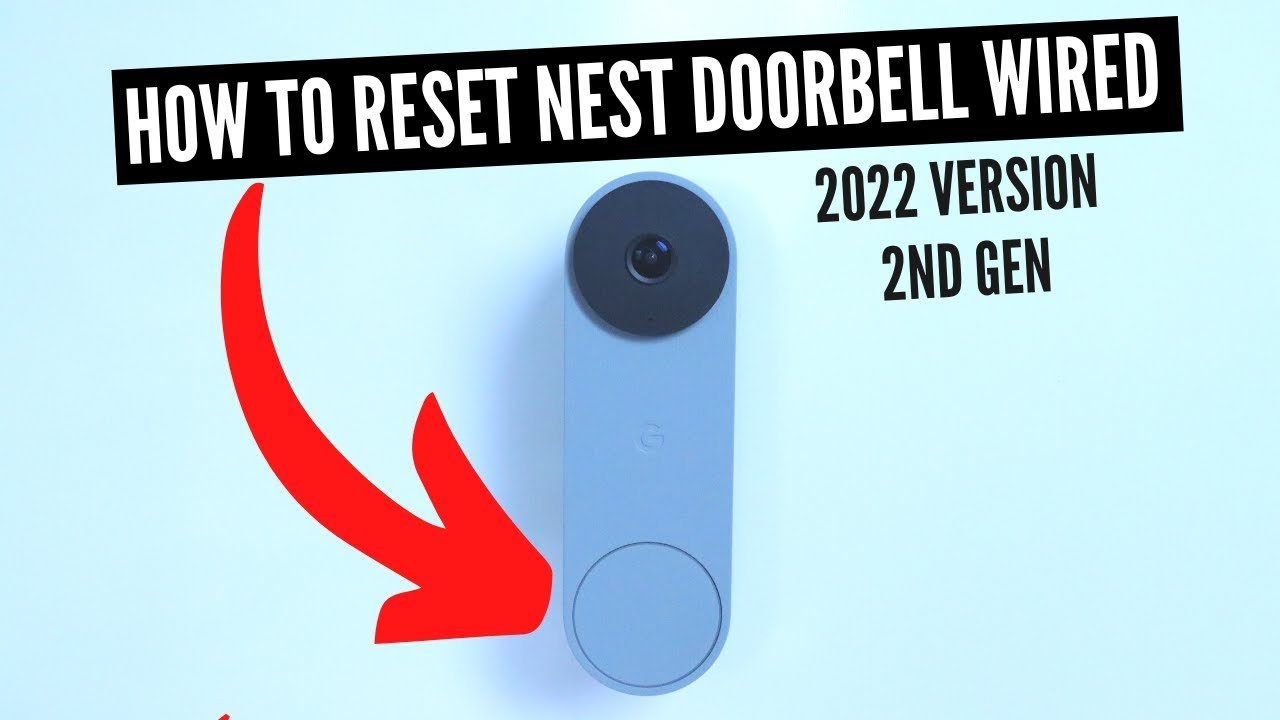
A successful reset produces distinct hardware signals. The front ring emits an audible multi-tone chime, and the LED pulses slowly with a steady blue glow to announce setup readiness. You can confirm device status directly through the Google Nest Help reset guide, which outlines factory light patterns for every generation. The decisive test is simple: open the Google Home app and search for nearby hardware; if your phone detects the doorbell as an unpaired accessory ready for setup, the memory wipe worked properly.
Mistakes That Ruin It
- Letting go of the button too early: The doorbell performs a simple restart instead of a wipe if you release the pin before 10 seconds pass. Keep constant pressure on the switch until the confirmation tone sounds.
- Skipping the app removal step: The internal antitheft system leaves the doorbell linked to your profile, which prevents new owners from registering it. Delete the unit from your mobile app before wiping the physical hardware.
- Resetting with an empty battery: Losing power during flash memory writes can corrupt the device operating system permanently. Charge your battery-powered unit to at least 50 percent capacity before attempting a wipe.
Frequently Asked Questions
Will Resetting the Doorbell Delete My Recorded Video History?
Yes. A factory wipe deletes all stored clips, event timestamps, and familiar face profiles. You can’t recover these files later. You trade saved video history for a clean system state, so manually download any important security clips to your phone storage before clearing the device.
Can You Reset a Nest Doorbell Without Wi-Fi?
Yes. The physical reset pinhole operates completely offline. You can clear the internal memory and remove network configurations without an active internet connection, though you’ll need working Wi-Fi later to complete setup.
Why Won’t My Reset Button Click Down?
You might be pressing the microphone opening instead of the reset switch. The actual pinhole button offers a distinct, springy mechanical click when pressed gently with a paperclip. Never force a tool inside an unyielding opening.
What Happens If I Move into a Home with an Existing Nest Doorbell?
The previous owner must unlink the doorbell from their personal account first. A hardware reset clears local settings, but Google’s cloud protection prevents a new account from claiming the device until the original owner releases it.
Why Is the Light Ring Pulsing Yellow After a Reset?
A yellow pulsing light means the doorbell isn’t receiving adequate operating power to boot. Inspect your wired chime transformer voltage or plug the unit into a wall charger with its included USB cable.