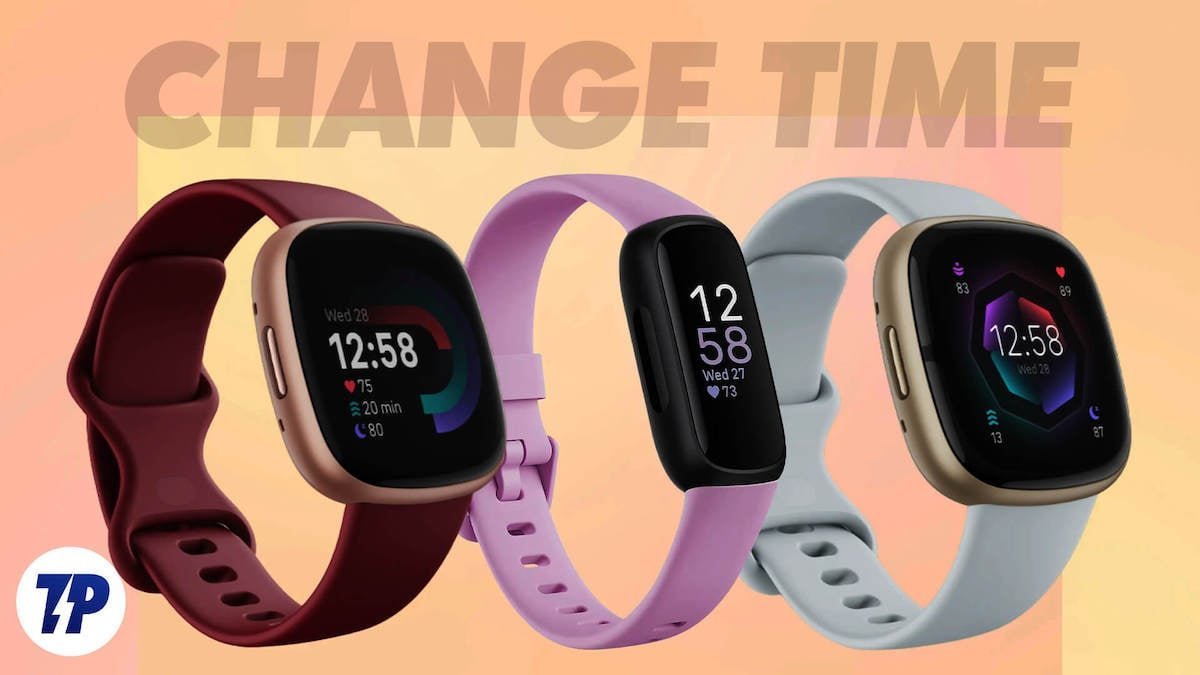
Resetting the time on a Fitbit comes down to syncing it with your phone or changing the timezone in the Fitbit app. Open your Fitbit app, pull down on the Today screen to force a sync, and the tracker updates its clock to match your phone within five seconds.
Your tracker doesn’t keep its own independent time. It borrows the exact clock and timezone data from your connected phone or tablet through a Bluetooth link whenever the two devices talk.
A common mistake happens when people try to change the clock directly on the watch screen. You can’t adjust the hours or minutes on the tracker itself, so tapping through your watch settings won’t solve the issue.
Updating the Clock Settings
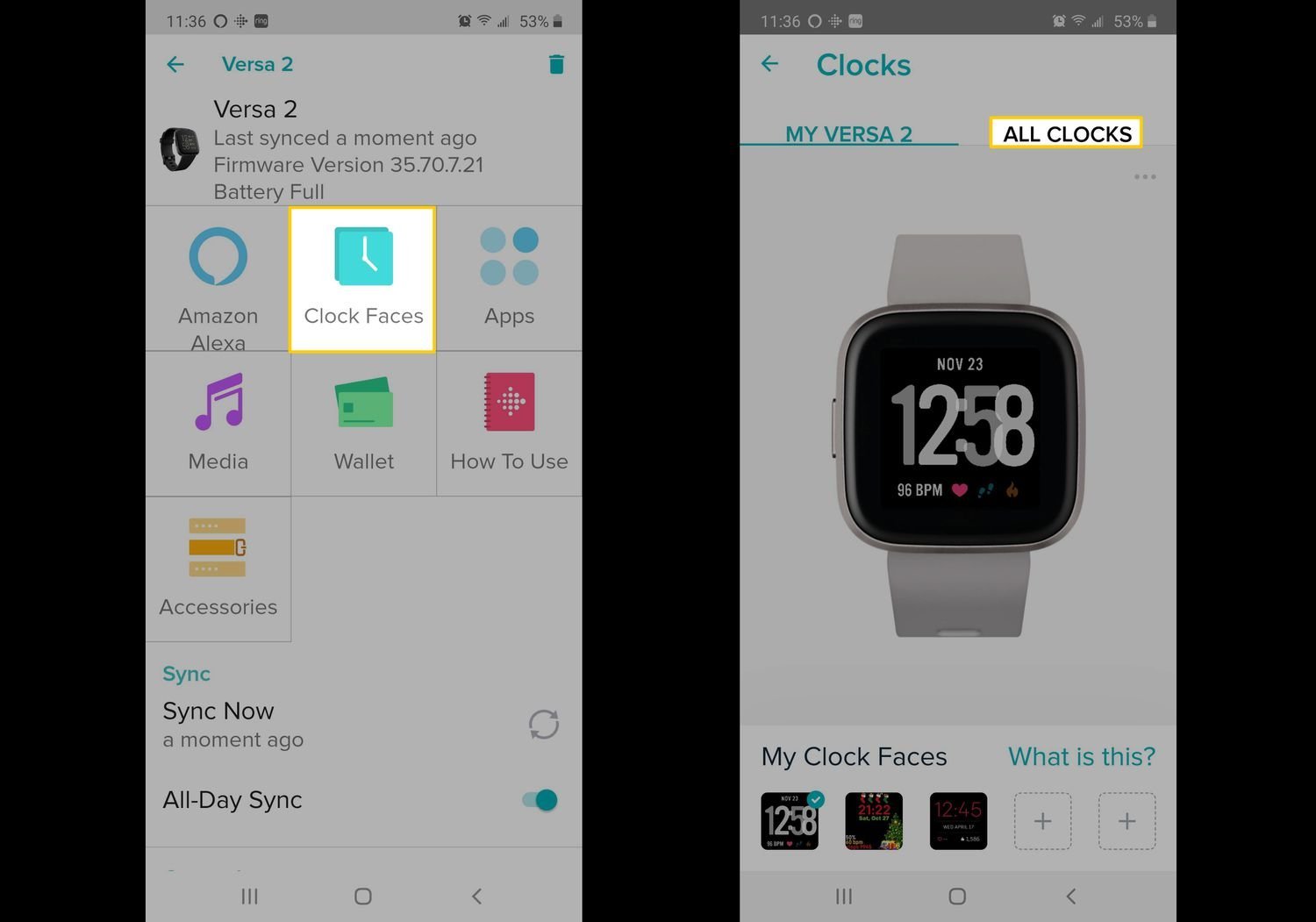
- Turn on Bluetooth on your phone and open the Fitbit app. Keep your tracker within three feet of your phone so the wireless signal doesn’t drop during the update.
- Tap the Today tab at the bottom left, then pull your finger down the screen and release it to force an immediate sync. This takes about five to ten seconds and usually fixes the clock immediately. Tip: If the sync circle spins without finishing, toggle your phone’s Bluetooth off for ten seconds and turn it back on.
- Tap the You tab or your profile icon in the top corner if the time is still wrong after syncing, then select App Settings.
- Tap Time Zone, turn off the Set Automatically toggle, and manually pick your correct local time zone from the list.
- Return to the main screen and pull down to sync once more so the new setting transfers over to your wrist.
How Long It Takes
Syncing takes only a few seconds, but weak Bluetooth connections or manual timezone adjustments will extend the process slightly.
| Situation | How long | What changes it | What to watch for |
|---|---|---|---|
| Standard sync | 5 to 10 seconds | Bluetooth signal strength | The sync progress bar finishing |
| Changing timezone manually | 1 to 2 minutes | Finding your city in the app list | The toggle turning gray when disabled |
| Tracker battery completely died | 2 to 3 minutes | Reconnecting after a full shutdown | The watch screen lighting up before sync |
| Traveling across borders | 1 to 5 minutes | Phone picking up local cell towers | Phone clock changing before the app syncs |
If your app stays stuck on the sync screen for over two minutes, restart your phone and the tracker before trying again.
How to Tell When It’s Done
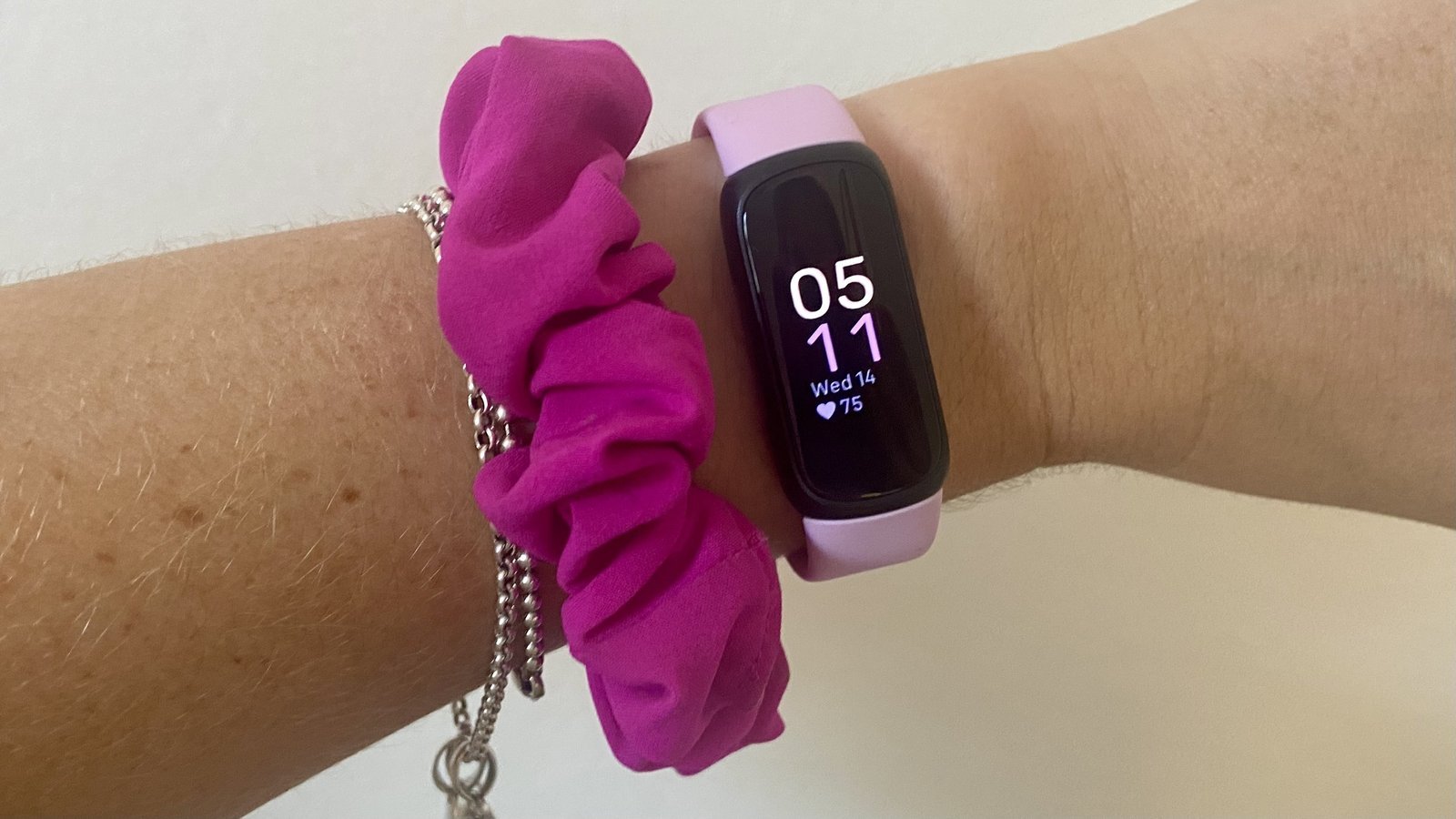
The tracker’s display tells you immediately if the update worked. Wake the screen by tapping it or pressing the side button, then check the main clock face against your phone’s status bar. If the hours, minutes, and AM/PM match your phone exactly, the task is finished. When the tracker shows a different hour, open the app’s Today screen and verify that the sync timestamp reads “Synced just now.” If you want an absolute standard to settle any doubt, compare your watch against the official US civil time published by the National Institute of Standards and Technology.
Mistakes That Ruin It
- Trying to change hours on the wrist: You’ll waste time searching tracker menus because the device lacks manual clock settings. Always make adjustments inside the mobile app on your phone instead.
- Leaving low battery on the tracker: A tracker battery under ten percent often shuts down Bluetooth to save power, which blocks the sync entirely. Charge your device to at least twenty percent before you try updating the clock.
- Keeping the wrong phone time: The Fitbit app copies whatever time your phone displays, even if your phone clock is wrong. Fix your phone’s native date and time in your mobile operating system first.
Frequently Asked Questions
Can I Change the Time Without a Smartphone?
Yes, you can update it using a computer. You’ll need the Fitbit Connect software installed and the wireless sync USB dongle plugged into your computer’s USB port. Open the software, log into your account, and click Sync Now while standing near the computer.
Why Is My Tracker Time Wrong After Traveling?
Your phone didn’t update the app’s location data automatically. This happens when background app refresh is off or when you don’t have cellular roaming. Open the Fitbit app while connected to local Wi-Fi and perform a manual pull-down sync to grab the new local timezone.
What Happens If My Tracker Battery Dies Completely?
The internal clock stops running the second the device loses power. Even after you charge it to one hundred percent, the screen displays the exact minute it shut down. You must sync it with your phone immediately after charging to restore the correct time.
How Do I Switch Between 12-Hour and 24-Hour Time?
Log into your account on fitbit.com using a web browser. Click the gear icon, choose Settings, scroll down to Clock Display Time, and select either 12 Hour or 24 Hour. Save your changes at the bottom of the page, then sync your tracker via the mobile app.
Is It Safe to Leave Automatic Timezone Turned On?
Yes, leaving automatic timezone on is safe and convenient for daily life. However, if you live right along a timezone border, your tracker might jump back and forth unexpectedly. In that specific case, turning off the automatic switch and locking in your local zone works much better.
Related guides