How to reset what if scores on canvas: click the “Revert to Actual Score” button once inside your course gradebook, which takes under two seconds. This action immediately clears all your hypothetical grades and restores your true calculation. It suits students best who want to see their real academic standing after testing different final exam outcomes.
Things to Check Before You Reset Canvas Scores
- An active student account with login access to your school’s Canvas portal.
- An updated web browser like Chrome, Firefox, or Safari (version 100 or newer; older versions like Internet Explorer won’t load the dynamic score fields).
- Enrollment in an active course where the instructor has enabled the student “Grades” tab.
- At least one graded or ungraded assignment currently visible in the course syllabus.
- A desktop or laptop computer, or a tablet running the desktop browser view.
Using a computer browser works best; using the native Canvas Student mobile app won’t work because the app doesn’t support the full What-If calculation tool.
Step-by-Step
- Open your web browser and navigate to your institution’s specific Canvas login URL.
- Sign in with your student credentials and click on the Courses icon in the left-hand global navigation bar.
- Select your current course from the menu, then click the Grades link located in the course navigation list on the left.
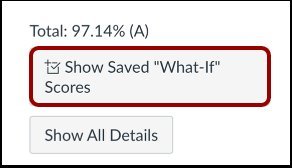
- Locate the right-hand sidebar above your assignment list where your total grade calculation appears.
- Click the gray button labeled Revert to Actual Score once to remove all entered numbers at the same time. – Tip: If the total sidebar doesn’t show the button, you haven’t altered any scores yet, or your instructor has hidden the final grade total entirely.
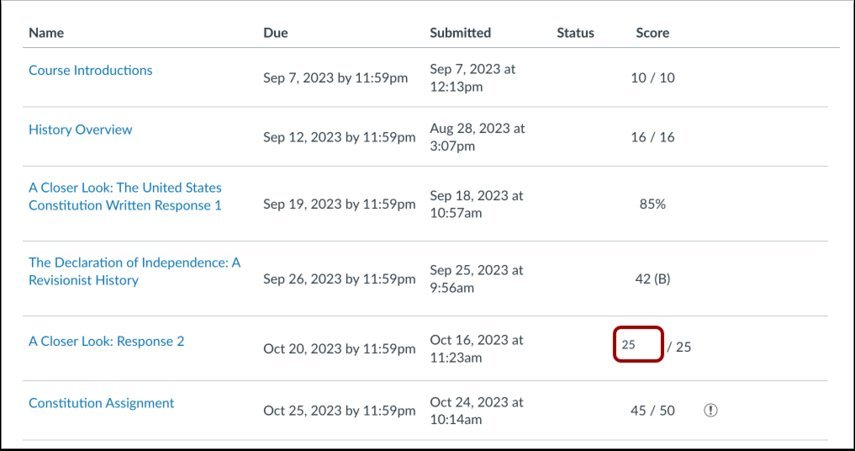
- Click directly on an individual score box if you only want to reset a single assignment, delete the number you typed, and press your keyboard’s Enter key. – Careful: Forgetting to press Enter or Return after deleting an individual score leaves the hypothetical number cached in your active browser view.
- Refresh your web browser page by pressing F5 or the circular reload arrow to ensure every cached What-If value clears completely. – Tip: If your course restricts grade views or locks your account, contact your university IT help desk, as instructors control whether student grade calculations remain visible.
Gradebook Display by Device Type

Your interface layout changes depending on the screen size and the method you use to load the gradebook.
| Setup Situation | Time Required | Interface Difference | What to Watch |
|---|---|---|---|
| Standard Desktop Screen | 2 seconds | Sidebar displays the revert button on the far right | Total percentage drops back to true score |
| Narrow Laptop Screen | 5 seconds | Total summary moves below the assignment table | Hidden revert button requires scrolling down |
| Tablet in Desktop Mode | 10 seconds | Touch targets require a precise tap to clear | Keyboard pop-up may cover the total row |
| Single Assignment Reset | 3 seconds | Only one line updates instead of the entire course | Surrounding What-If values stay active |
It’s safer to test one assignment grade at a time rather than changing all your scores at once, because changing too many makes it hard to remember your original numbers.
How to Tell You Did It Right
A correct reset shows your total percentage matching your original grade, with no blue or gray highlighted boxes in your assignment list. When What-If mode is active, Canvas places an arrow or distinctive text next to the total score indicating it’s a test value. A poor reset leaves that warning indicator visible, meaning the system is still computing an imaginary grade. This persistent state happens because local browser caches occasionally hold form inputs until the page reloads. You can prevent this lingering value by refreshing the page immediately after clicking revert, checking that each assignment row shows an official score or a simple dash, and confirming the total calculation shows no hypothetical flags.
Official Grade Rules and Data
Instructure publishes official user instructions through the Canvas Community student guides, which document that What-If grades exist solely within your temporary browser session. Your instructor never sees your test scores, and Canvas never writes them to your school’s permanent records. Once you clear the scores or log out, your real grade remains intact until an instructor enters a new grade. This temporary tool has an honest limit: it varies by course—check your syllabus—because an instructor can restrict grade totals entirely, preventing hypothetical calculations from showing final letter grades.
Other Ways to Clear Scores
Full Browser Refresh
Reload the active gradebook tab by pressing Ctrl+F5 on Windows or Cmd+Shift+R on Mac. This forces the browser to discard cached What-If data without touching the interface buttons, restoring the true grade in roughly three seconds without risking any saved system settings.
Logging Out Completely
Sign out of your Canvas profile using the Account icon on the navigation rail. Logging out immediately destroys the temporary session storage where What-If scores live, guaranteeing an untouched grade display when you log back in, though it costs about thirty seconds.
Individual Score Deletion
Click the exact score box you edited, highlight the text, and backspace the entry until it’s completely blank. Hit Enter to restore the dash placeholder, allowing you to keep other hypothetical assignment grades active while resetting only one specific task.
Frequently Asked Questions
Can My Teacher See My What-If Scores?
No. Canvas keeps What-If scores entirely on your local web browser session. Your teacher and teaching assistants can only view actual grades submitted by instructors. They can’t see your test calculations, notes, or score experiments under any circumstance.
Why Won’t My What-If Score Go Away?
Your web browser likely stored the entry in its local cache memory. If clicking the revert button doesn’t clear the value, clear your browser cache or perform a hard refresh by pressing Ctrl and F5 together to force a fresh page load.
How Long Do What-If Grades Stay Saved?
They disappear the moment you log out or close your current browser tab. Canvas doesn’t save What-If entries to its database. If you navigate to another course and return later, your gradebook usually resets automatically to your genuine score.
Does Resetting What-If Scores Delete My Submitted Work?
No. Resetting a score simply tells the page to stop calculating a hypothetical number. Your submitted assignments, uploaded files, discussion posts, and official teacher feedback remain completely safe and untouched inside the Canvas course database.
What Happens If I Type a Score Higher Than the Maximum Points?
Canvas calculates your hypothetical total using the extra points, effectively treating it like extra credit. While it lets you see unusual grade scenarios, it may give you an inaccurate picture if your instructor doesn’t allow bonus points in that assignment group.