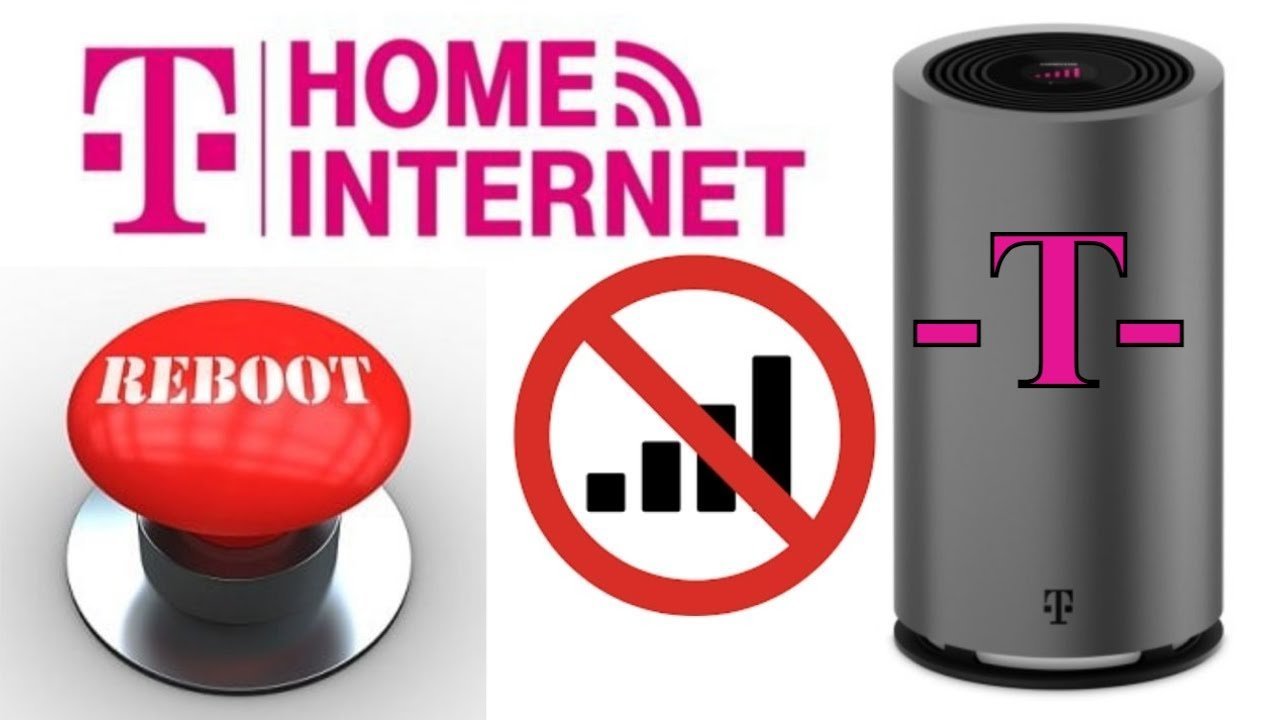
Resetting your T-Mobile router takes about 5 minutes, and holding the reset button down for 10 to 15 seconds returns your device to factory settings. This method suits anyone dealing with dropped internet signals, forgotten admin passwords, or devices that won’t connect after a service outage.
Things to Gather Before You Reset Your Router
- A paperclip, safety pin, or SIM card removal tool to reach the recessed pinhole button. A pencil tip will break off and get stuck, so don’t use wood or graphite.
- The original power adapter plugged directly into a working wall outlet.
- The default Wi-Fi credentials printed on the back or bottom sticker of the unit (the factory SSID and network key).
- A smartphone, tablet, or PC to set up the connection once the hardware restarts.
A bent metal wire works fine if you don’t have a SIM tool, but a toothpick doesn’t work because the wooden tip snaps inside the casing. If your power cord is damaged, stop immediately; order an official replacement directly through T-Mobile support to prevent electrical shorts.
Step-by-Step
- Leave the gateway powered on and verify that the power adapter is firmly attached to the rear port. If the screen is completely blank, press the power button once to check if the unit is alive.
- Locate the pinhole labeled “Reset” on the lower back or bottom panel of the gateway. The exact position varies by model — check the label on your specific hardware.
- Insert your straightened paperclip straight into the hole until you feel the switch click inward. Hold this switch down firmly for 10 to 15 seconds without letting it slip. Careful: If you pull the tool out before 10 seconds pass, the unit merely restarts without clearing your stored data, leaving bad settings intact.
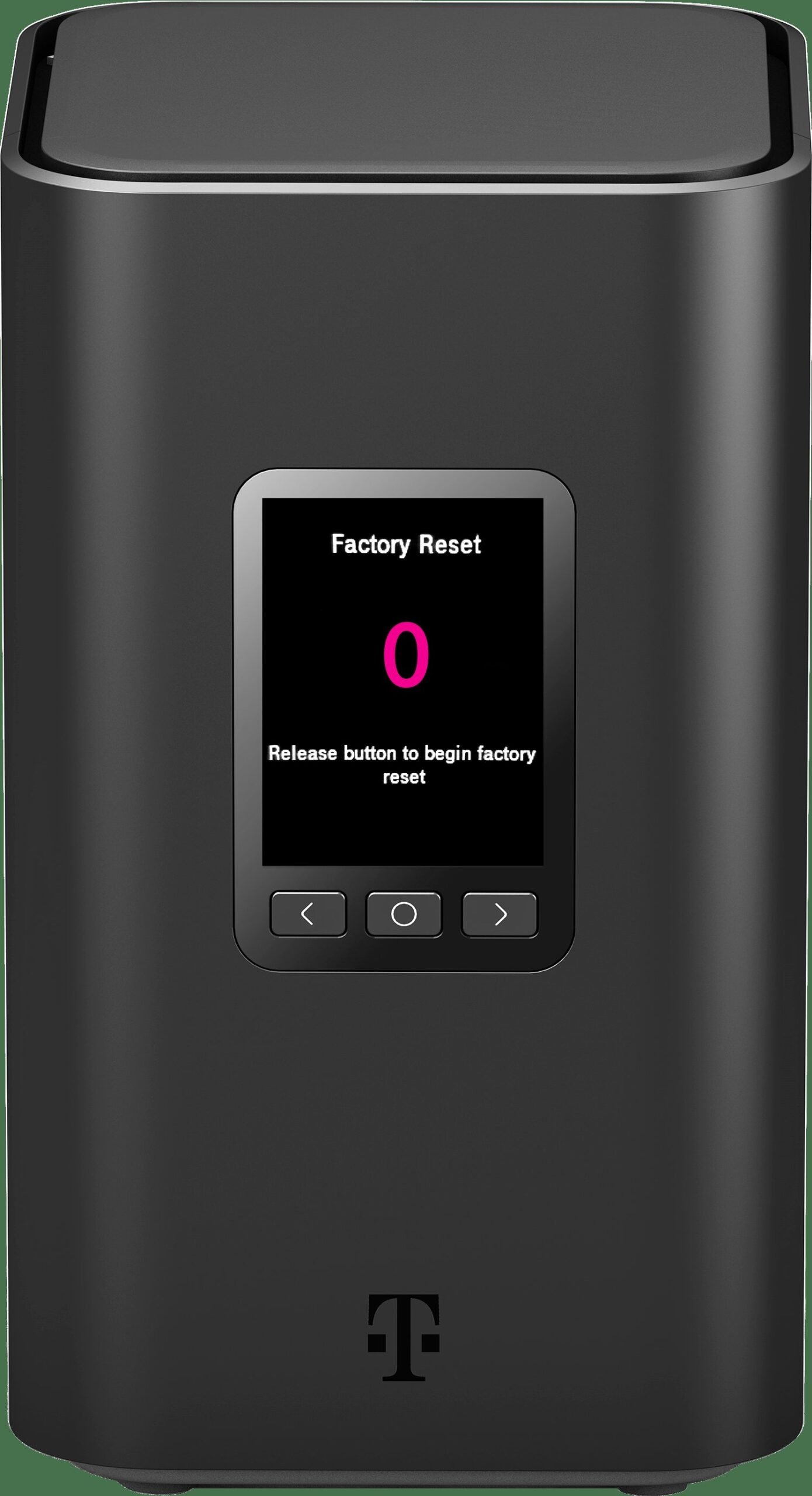
- Watch the front screen or small status lights while pressing. Release the tool the moment the screen shows “Factory Reset in Progress” or all LEDs turn off and on again.
- Wait 3 to 5 minutes for the device to complete its boot sequence. Don’t unplug the power cable while it boots, or the firmware can crash entirely.
- Connect your phone or laptop to the default Wi-Fi network printed on the unit’s rear sticker. Tip: Type the default password exactly as printed; capital letters and numbers are case-sensitive.
- Open a web browser or the T-Mobile Internet app to give your Wi-Fi network a new name and password.
Resetting Across Different Gateway Models
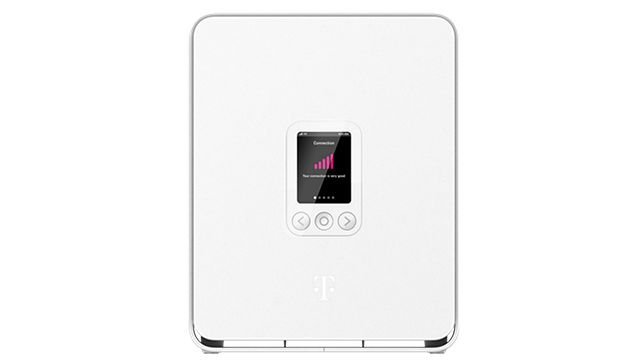
Every gateway behaves a bit differently when wiped, depending on whether it has a touchscreen or uses simple indicator lights.
| Gateway Hardware | Boot Time After Reset | Hardware Differences | What to Watch on the Screen |
|---|---|---|---|
| Arcadyan KVD21 | About 3 to 4 minutes | Pinhole sits right above the USB-C power port | Front screen says “Resetting” then shows welcome prompt |
| Sagemcom Fast 5688W | About 4 to 5 minutes | Recessed button needs a longer, narrow tool | Display flashes black, then loads signal strength bars |
| Nokia 5G21 (Cylinder) | About 5 minutes | Pin hole is located on the lower side panel | Round top screen spins a circle icon until ready |
| Sercomm LTE Gateway | About 2 to 3 minutes | Uses simple colored lights instead of a screen | Power light turns solid amber, then changes back to green |
Starting with a standard restart takes less work and saves your network name, so try that first before choosing a full factory wipe that erases everything.
How to Tell You Did It Right
A successful reset shows a clean setup screen on the display or a solid green light indicating it has connected to the cellular network. If your devices can’t browse the web or the network name remains what you custom-named it before, the reset failed completely. The device didn’t wipe because the paperclip slipped off the tiny internal button halfway through the count. People often tilt the clip sideways, which slips off the contact point without applying real force. To fix this, insert the pin straight, feel for the mechanical click, and hold it steady until the lights cycle.
Factory Defaults and Proper Placement
The device will broadcast at factory Wi-Fi standards right after a wipe. Make sure you adjust the network name and personal security password in the T-Mobile Home Internet support portal to match your household devices again. After completing the reset, place your unit near an elevated window without thick concrete walls or metal blinds blocking the signal path. Keep it clear of heavy appliances like refrigerators and microwave ovens. A clean setup easily lasts for months without needing another wipe, unless your provider sends a major software update that hangs during installation. If you smell burning plastic or the unit gets extremely hot to the touch, this isn’t a DIY task; contact the carrier right away for a safe equipment swap.
Alternative Reset Methods
Mobile App Reset
If the hardware buttons are tough to reach, open the T-Mobile Internet mobile app on your phone. Go to the system settings menu, choose the factory restore option, and confirm the prompt. This takes about 4 minutes and saves you from finding a paperclip, but it requires that your phone is currently connected to the local network.
Power Cycle Restart
If you simply have slow data speeds, pull the power cord out from the back of the unit. Wait a full 30 seconds to drain residual charge, then plug it back in. This doesn’t erase your passwords, costs zero time in reconfiguration, and clears out memory bugs in roughly 2 minutes.
Web Admin Interface
You can type 192.168.12.1 into an internet browser while connected to the router via an Ethernet cable. It provides a direct digital wipe without pressing physical buttons, but you must have a working Ethernet cable ready.
Frequently Asked Questions
Will Resetting My Router Delete My Wi-Fi Password?
Yes, a factory reset erases all custom settings and returns your Wi-Fi name and password back to the factory defaults printed on the device’s sticker. You’ll need to reconnect every laptop, smart TV, and phone in your home using that original sticker code.
How Long Does a T-Mobile Router Reset Take?
The entire process takes roughly 3 to 5 minutes from pressing the button to reaching a usable connection. Holding the reset button takes 10 to 15 seconds, while internal hardware rebooting and signal registration take up the rest of the time.
Can I Reset the Router Without the App?
Yes, using the physical pinhole reset switch on the back of the router completely wipes the unit without needing any smartphone app. You simply need a thin paperclip to press the internal switch for about 10 seconds while the unit is plugged into the wall.
Why Is My Router Blinking After a Reset?
Blinking lights mean the router is actively booting up, searching for a cellular signal, or installing fresh firmware from the carrier. Wait up to 5 minutes without touching the power cable; the lights will stabilize once the unit registers on the nearest cell tower.
Is It Safe to Unplug the Router While It Resets?
No, unplugging the device during an active factory reset can permanently corrupt the built-in operating system. If power cuts out while the unit overwrites internal files, the router might become completely unresponsive, requiring you to order an official replacement gateway from customer care.
Who Is This Reset Not For?
This method isn’t for someone who just has a loose cable or who doesn’t know their default Wi-Fi password. If you can’t read the print on the back sticker, don’t perform this wipe, because you’ll be locked out of your internet connection until support assists you.