
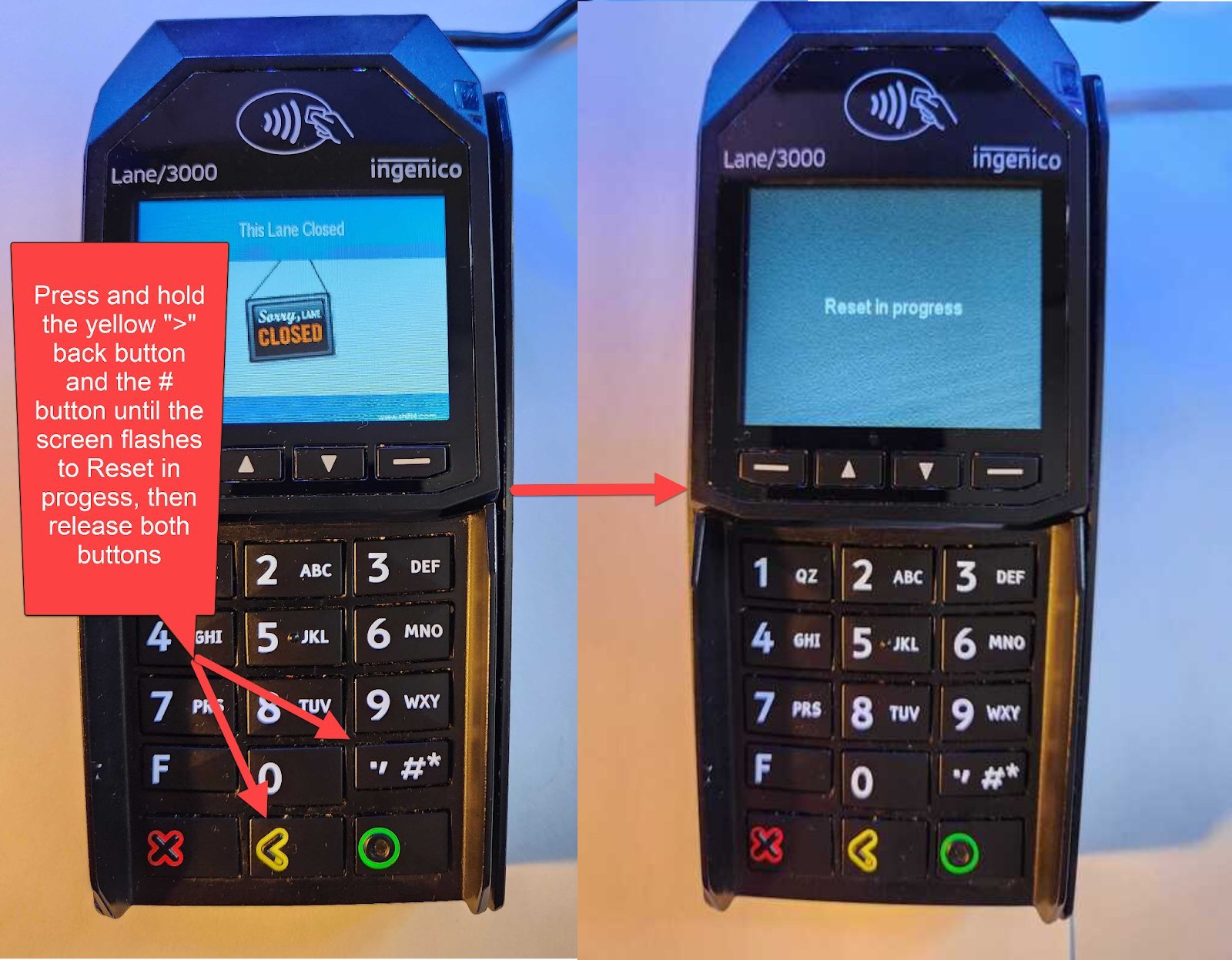
Resetting a card reader takes holding the power button down for 20 seconds to clear minor software freezes, or pressing a dedicated pinhole button to restore factory defaults. If the device connects via Bluetooth or USB, disconnecting the cable and forgetting the accessory inside your point-of-sale settings completes the process.
A soft reboot merely restarts the software, but a hard reset wipes all stored network credentials and paired devices. The trade-off is clear: a hard reset fixes stubborn pairing errors, yet it forces you to spend extra time setting up your connection again. This guide isn’t for damaged chip slots or cracked display screens, which need physical repair.
The biggest mistake is starting a reset while a software update runs in the background. Interrupting firmware corrupts internal memory and permanently disables the terminal. This varies by model — check the label on the bottom of the casing for exact voltage needs before plugging it in to reset.
Steps to Reset Your Card Reader
- Disconnect the charging cord from the reader and turn off Bluetooth on your connected phone or tablet. This cuts external signals so the machine can shut down cleanly without fighting an active data stream.
- Hold the power button down for 20 continuous seconds until all lights go completely dark. Don’t release the switch early, even if the panel blinks after five seconds. Tip: If the lights stay frozen on, locate the small pinhole reset switch on the back or bottom edge instead.
- Insert a straightened paperclip into the pinhole switch, pressing gently inward for 10 seconds until you feel a light click. If you feel resistance without a click, stop immediately to avoid puncturing the internal casing.
- Open your phone or tablet settings, select Bluetooth, find the card reader’s name, and tap “Forget Device.” Removing the old pairing stops the phone from sending corrupted sync data to the freshly wiped reader.
- Plug the machine into a wall outlet for at least 15 minutes before turning it on. Low power during a restart causes memory faults that freeze setup menus. Tip: Never use an unverified fast charger, as unstable currents disrupt the boot sequence.
- Press the power button once to boot the reader, open your register app, and pair the terminal as a brand-new device. Follow the manufacturer’s official connection prompts, such as the Square reader reset instructions, to complete pairing safely.
How Long It Takes
Resetting and re-pairing a mobile terminal takes between two and ten minutes depending on your setup.
| Situation | How long | What changes it | What to watch for |
|---|---|---|---|
| Standard Soft Reboot | 1 to 2 minutes | Processing speed of the reader | Rapidly flashing power lights |
| Hardware Pinhole Reset | 3 to 5 minutes | Time needed to clear cache | Dark screen followed by a brand logo |
| Bluetooth Unpair and Reconnect | 4 to 6 minutes | Tablet operating system speed | Prompts asking for new passkeys |
| Reset with Firmware Download | 8 to 12 minutes | Local Wi-Fi network speed | A steady progress bar on screen |
If the terminal stays unresponsive after 15 minutes, disconnect the charger, let the battery drain out completely overnight, and retry the steps.
How to Tell When It’s Done
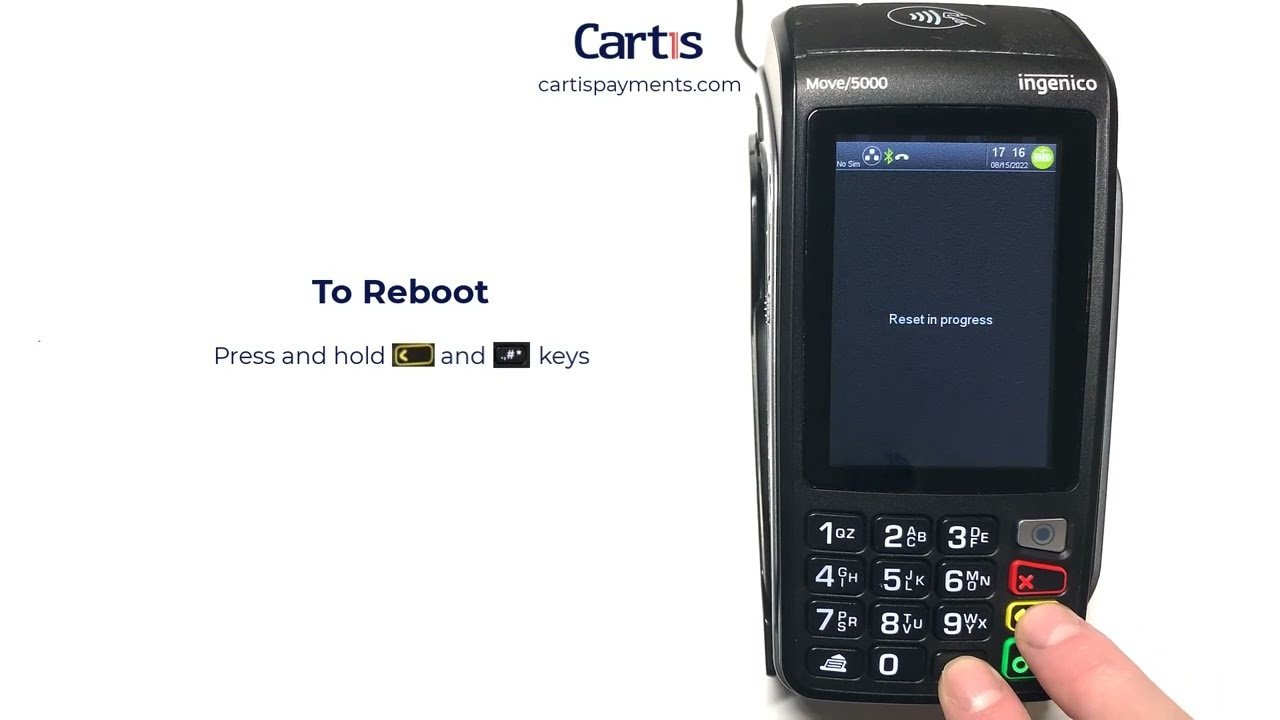
A successful reset shows distinct visual signals. The status LEDs cycle through colors, flash four times, and settle into a single steady light or a solid battery bar. On screen-equipped terminals, the display leaves the frozen menu and shows a “Welcome” or “Ready to Pair” screen. If you check your tablet’s Bluetooth menu, the reader’s serial number will appear under available nearby devices rather than connected hardware. The final test that settles it’s processing a live one-cent test transaction; when the software registers the card tap and asks for a receipt, your reader works properly.
Mistakes That Ruin It
- Using sharp needles in the pinhole: Sewing needles can slip, pierce delicate internal circuit boards, and destroy the reset switch entirely. Always use a dull paperclip or an official SIM tray removal tool instead.
- Skipping the Bluetooth removal step: Leaving the old profile saved on your tablet causes immediate sync conflicts when the reader restarts. Delete the old device listing from your tablet before turning the reader back on.
- Resetting during an active payment: Forcing a restart while a card is processing causes a transaction drop that might double-charge a customer. If an authorization hangs, void the charge inside your app first, then start the reset.
- Running the reset on an empty battery: If the device loses charge halfway through restoring default files, the internal operating system breaks. Ensure the reader has sufficient charge before starting the reset sequence.
Frequently Asked Questions
Will Resetting a Card Reader Delete My Transaction History?
No. Your sales history and transaction records stay safely stored inside your cloud-based merchant account. The reset only wipes hardware settings, local memory cache, and network connections from the reader itself.
Can a Damaged USB Port Stop a Card Reader from Resetting?
Yes. If the charging port has bent pins or loose solder, the reader won’t draw stable electrical power. If the battery lacks steady current, modern payment machines lock down to prevent corrupted memory writes.
Why Won’t My Reader Turn on After a Pinhole Reset?
A flat battery is the primary reason a reader remains dark after a pinhole reboot. Leave the device connected to a standard wall charger for at least 30 minutes, then press the power button once.
Is It Safe to Reset a Card Reader Multiple Times?
Yes. Performing multiple resets doesn’t harm the internal storage drives or degrade the payment chips. However, if you need several daily resets to keep the reader working, the device or its software may require professional support or replacement.
What Happens If I Release the Power Button Too Early?
Releasing the switch before 20 seconds only turns the reader off rather than clearing its temporary cache. Hold the button down steadily through all initial flashes until the cycle finishes completely.


1 thought on “How to Reset a Card Reader: Troubleshooting Guide”