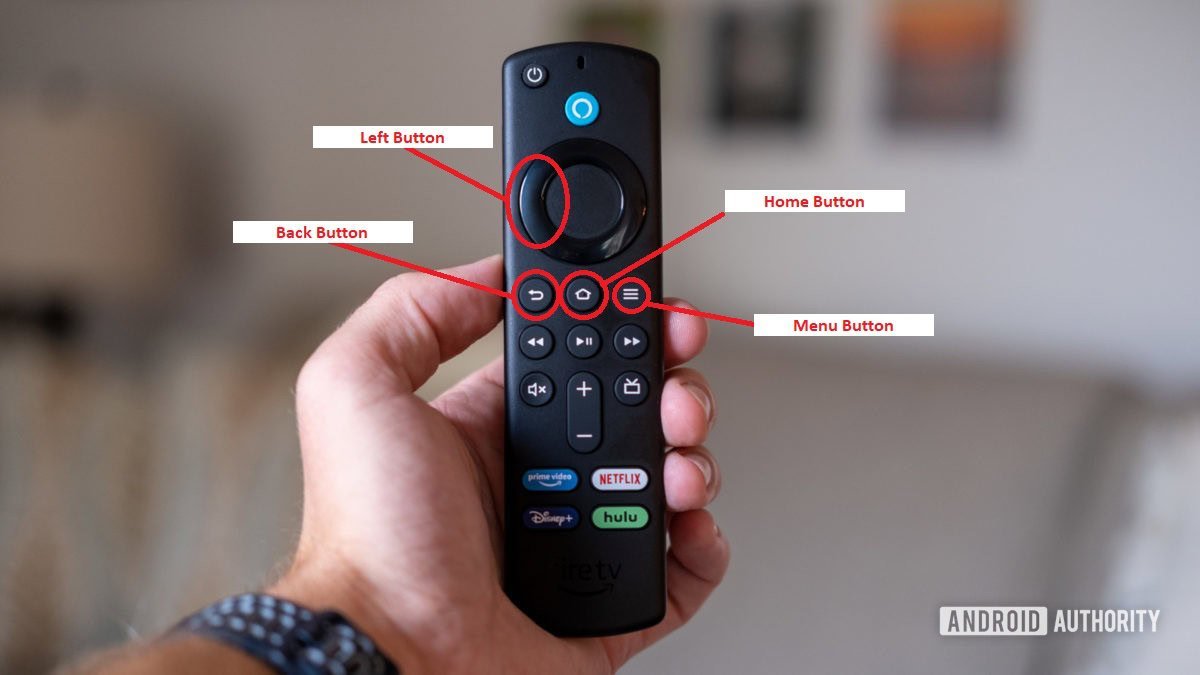
How to reset Firestick devices safely takes just 10 seconds: press and hold the Back button and the Right direction button together on your remote until the reset prompt appears, then select Reset. You can also open your on-screen Settings, go to My Fire TV, and choose Reset to Factory Defaults.
A factory reset completely wipes personal logins, downloaded apps, and saved passwords, returning the device to its original factory state. The trade-off is simple: you solve stubborn freezing and system glitches, but you’ll spend time typing in all your Wi-Fi and streaming accounts again.
This process isn’t for anyone who only faces a slow internet connection, since rebooting the router solves that without wiping data. The biggest mistake is starting the wipe while your remote has dying batteries, which leaves you stuck on the setup screen later.
Restoring Factory Defaults
- Turn on your television and switch to the correct HDMI input for your streaming stick.
- Open the Settings menu by selecting the gear icon on the far right of the home screen.
- Scroll down and click on the My Fire TV tile.
- Select Reset to Factory Defaults near the bottom of the list.
- Confirm your choice by clicking Reset when the warning prompt appears on your screen. Tip: If you set a PIN for parental controls, enter those 4 digits now or the reset will stop.
- Leave the power cord connected to the wall outlet while the device shuts down, erases files, and restarts automatically. Tip: If your remote stops responding entirely before you can open menus, press and hold Back and Right simultaneously for 10 full seconds to trigger the wipe, following Amazon device support guidelines for remote recovery.
How Long It Takes
A full reset typically takes between 5 and 15 minutes depending on your model and storage space.
If the process takes longer than 20 minutes and shows only a static logo, disconnect the power cord for 30 seconds and plug it back in.
How to Tell When It’s Done
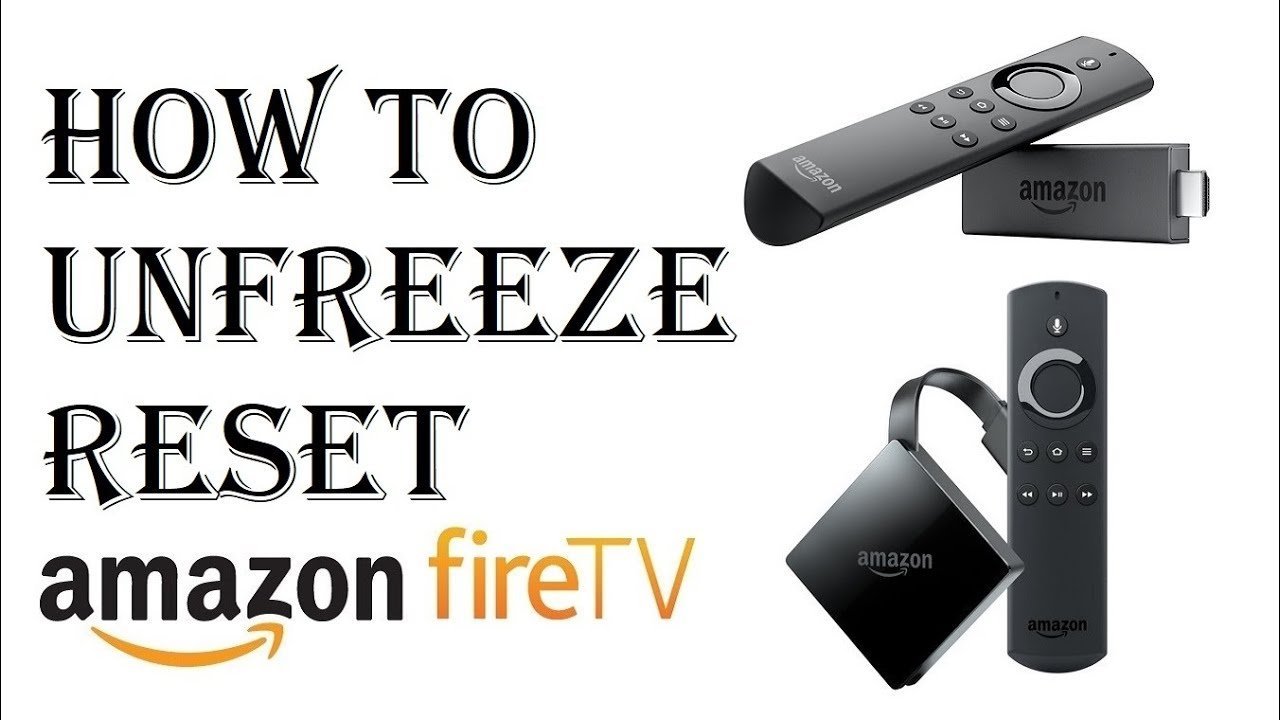
The reset is finished the moment the screen loads the initial setup language selection page. You’ll see the prompt asking you to press the Play/Pause button on your remote to begin pairing. The internal storage is completely clean at this stage, and no prior account names appear anywhere. The one test that settles whether the wipe actually succeeded is your login status: if the device boots straight to a home screen with your profile, the reset failed to execute. This layout varies by model—check the label on your box if your initial setup screens look slightly different.
Mistakes That Ruin It
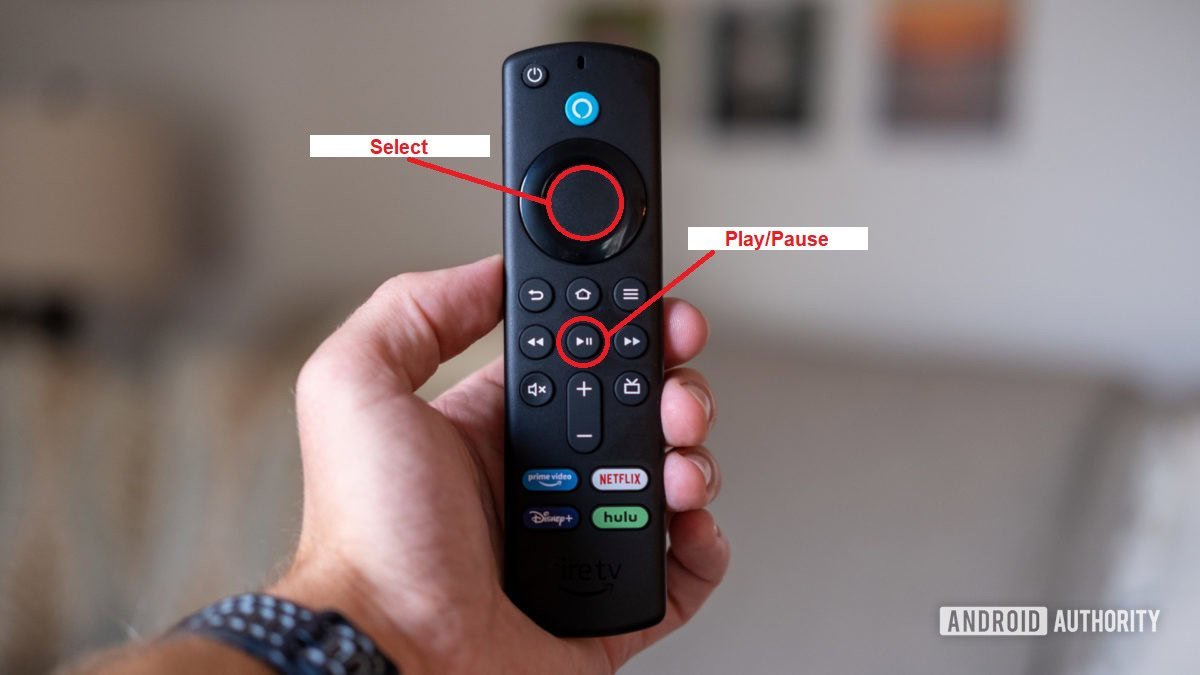
- Unplugging power during the wipe: Cutting electricity corrupts the operating system files and can permanently break the device. Always keep the power cable firmly attached until the setup screen appears.
- Using low remote batteries: Fresh AAA batteries ensure your remote pairs instantly after the reboot finishes. If your remote batteries fail during setup, you can’t complete the setup screens.
- Forgetting saved network passwords: A reset erases your saved Wi-Fi details along with everything else. If you know your Wi-Fi password, proceed; if you don’t know it, find it before wiping the stick.
Frequently Asked Questions
Can You Reset a Firestick Without the Remote?
Yes. If your TV supports HDMI-CEC, your regular television remote can navigate the Fire TV menus. Alternatively, plug a micro-USB OTG cable into your stick to connect a standard computer mouse, which lets you click through the settings menus directly.
What Happens If I Reset My Firestick?
A reset deletes all installed applications, parental controls, login credentials, and stored cache files. Your Amazon digital purchases remain safe inside your Amazon cloud account, so you won’t lose bought movies, but you must download every streaming app again.
Why Is My Firestick Stuck on the Reset Screen?
The stick is likely drawing insufficient electrical power from a low-output TV USB port. Plug the power cable directly into a wall outlet using the original 5-volt wall adapter. Insufficient power prevents the flash drive from writing system files properly.
Does Resetting Remove an Amazon Account?
Yes. The factory reset de-registers the physical device from your online Amazon account immediately. If you plan to sell or gift the streaming stick to someone else, running this reset prevents them from purchasing content using your payment methods.
How Long Should the Remote Buttons Be Held?
Press and hold both the Back button and the Right navigation ring button together for 10 continuous seconds. Release them only when the pop-up warning dialog appears on your television screen asking you to confirm the action.
Once your screen turns back on, you’ll need to link your Amazon account again and download your favorite streaming apps. Take your time setting up your home screen so everything feels familiar. You’ll be ready to enjoy your movies and shows with a fresh, fast start in no time.