How to reset Beats Solo 4 headphones: hold down the power button and the volume down button together for 10 seconds until the fuel gauge light flashes red and white. This factory reset clears your saved Bluetooth connections, restores default firmware settings, and fixes stubborn audio or pairing bugs immediately.
A factory reset only works when the headphones have battery power. If your headphones are completely dead, the buttons won’t trigger the reset cycle at all.
Many people start pressing buttons while the charging cable is still plugged into a wall outlet or laptop. The system locks out reset commands during active charging, so you must unplug the cable before you press anything.
Restoring Default Factory Settings
Follow these steps to restore your headphones to their original factory state:
- Unplug the USB-C charging cord from your headphones, since they won’t reset while connected to power.
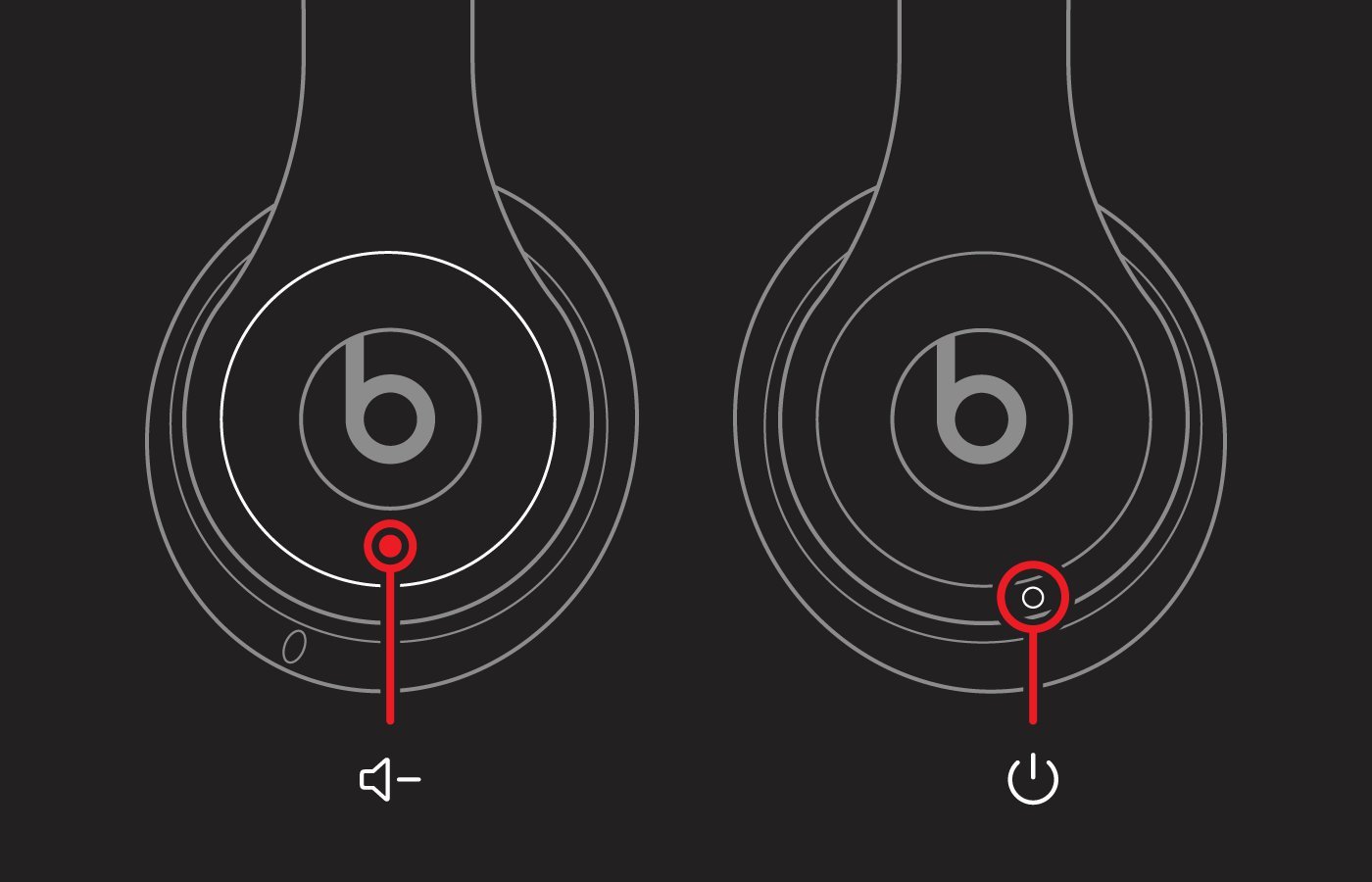
- Locate the “b” button on the left ear cup, which controls volume down on its bottom edge.
- Locate the small power button on the right ear cup.
- Press and hold both the power button and the volume down button at the same time for 10 seconds. Tip: Press the actual lower rim of the left “b” button rather than the center logo, or the volume down switch won’t engage.
- Watch the LED fuel gauge next to the power button until it flashes red, then flashes white.
- Release both buttons immediately once the white light starts pulsing.
- Open the Bluetooth settings on your phone, tablet, or laptop, locate your headphones in the list, and select “Forget This Device.” Tip: If you skip deleting the old connection, your device will keep trying to use outdated pairing keys and fail to connect.
If the headphones remain completely unresponsive after three attempts, official troubleshooting steps from Apple Support for Beats advise checking for hardware damage before setting up an authorized repair.
How Long It Takes
Resetting takes under two minutes from start to finish, depending on whether your battery has an active charge.
| Situation | How long | What changes it | What to watch for |
|---|---|---|---|
| Normal reset with charged battery | 10 to 15 seconds | Hand pressure on both buttons | The LED flashing red three times, then flashing white |
| Dead battery starting from 0% | 15 to 20 minutes | Charger wattage and minimum boot charge | Waiting for the fuel gauge to show a steady light before pressing buttons |
| Clearing stuck Bluetooth pairing cache | 1 to 2 minutes | Speed of removing the old profile on your phone | Phone scanning screen showing the headphones as a new nearby accessory |
If the LED doesn’t flash after holding the buttons for over 20 seconds, charge the battery for 15 minutes and try again.
How to Tell When It’s Done
You know the reset is complete when the LED light flashes red, turns white, and keeps blinking slowly. This pulsing white glow indicates that the headphones are in discovery mode and ready to link with a source device. The definitive test is opening your phone’s Bluetooth menu: if the headphones show up as an unlinked device ready for fresh setup, the reset worked. Apple devices will show a pop-up pairing card on your home screen. When you hear the standard startup chime through the speakers, the factory settings have loaded properly.
Mistakes That Ruin It
- Holding the volume up button: The headphones won’t enter reset mode because the factory trigger requires the volume down switch. Always press the bottom edge of the left ear cup control ring along with the power key.
- Leaving the USB-C cable plugged in: The internal safety board disables firmware resets while current enters the battery port. Unplug the cord from the left ear cup before you press the buttons.
- Keeping the old Bluetooth profile saved: Your phone tries to send audio using old security tokens that no longer match the reset headphones. Tap “Forget This Device” in your device settings so you can establish a clean connection.
- Letting go of the buttons too early: Releasing the buttons at seven or eight seconds merely powers the unit off instead of wiping the system. Keep firm pressure on both switches until you clearly see the LED flash red.
Frequently Asked Questions
Will Resetting Beats Solo 4 Delete My Personal Data?
No, it won’t delete any files, music, or media. The reset only wipes the internal Bluetooth memory, cleared pairing logs, and custom audio settings stored inside the headset itself. Your paired phone or computer keeps all its regular songs, downloads, and user settings intact without any changes.
Why Won’t My Beats Solo 4 Reset at All?
The battery is usually drained, or the charging cable is still plugged into the port. Charge your headphones for 15 minutes, remove the cable, and press both buttons again. If the fuel gauge stays dark after charging, contact an authorized repair center to inspect the internal battery.
Can You Reset Beats Solo 4 Using the Beats App?
No, you can’t trigger a factory reset through the Beats software interface. The app allows you to rename the headphones, locate them, and install firmware updates, but clearing hardware memory requires physical button presses. You must hold down the power and volume down buttons directly on the ear cups.
Is It Safe to Reset Headphones Frequently?
Yes, it’s completely safe to run a factory reset whenever you run into pairing errors or audio stutter. Resetting merely rewrites the configuration memory back to factory defaults. It doesn’t degrade your battery health, wear down internal circuits, or damage the speaker drivers in any way.
What Happens If I Release the Buttons Too Soon?
The headphones will simply turn off or switch into standard pairing mode without wiping your old settings. If the fuel gauge never flashes red, the wipe didn’t finish. You’ll need to turn the headphones back on and hold both buttons down for the entire 10 seconds.
Once you’ve cleared the memory, connect the headphones to your phone again like brand-new gear. If they still act up or won’t pair, it’s time to reach out to Apple Support. Their team can check the hardware and help you fix any stubborn glitches that remain.