The fastest method for how to set up roku without remote after factory reset requires an ethernet cable plugged into your router, or a mobile hotspot set to match your old network name. This job takes about 15 to 20 minutes, costs nothing if you own two phones, and rates as medium difficulty. You must have a second screen ready before starting.
What You Need
| Item | How much | Why it’s needed | A substitute |
|---|---|---|---|
| First smartphone | 1 phone | Broadcasts the setup network | A mobile Wi-Fi hotspot box |
| Second device | 1 phone or tablet | Runs the official controller app | none — don’t swap this |
| Official Roku app | 1 download | Controls the television interface | none — don’t swap this |
| Roku player or TV | 1 device | Receives the wireless signal | none — don’t swap this |
| Prior network name | 1 exact SSID | Lets device connect automatically | An ethernet network connection |
| Prior Wi-Fi key | 1 exact password | Authenticates the initial link | none — don’t swap this |
Before You Start
- Turn off your home broadband router completely so the Roku can’t find your regular home network.
- Move the streaming hardware within 5 feet of the hotspot phone to maintain a strong wireless link.
- Write down your old Wi-Fi name and password with matching letter cases.
- If your Roku unit has a physical ethernet port, skip the mobile hotspot entirely and plug directly into your router with an RJ-45 cable.
- This process isn’t for Roku streaming sticks that lack a network port if you don’t remember your old network details. Stop here and buy a replacement remote if your device hardware has physical board damage.
Step by Step
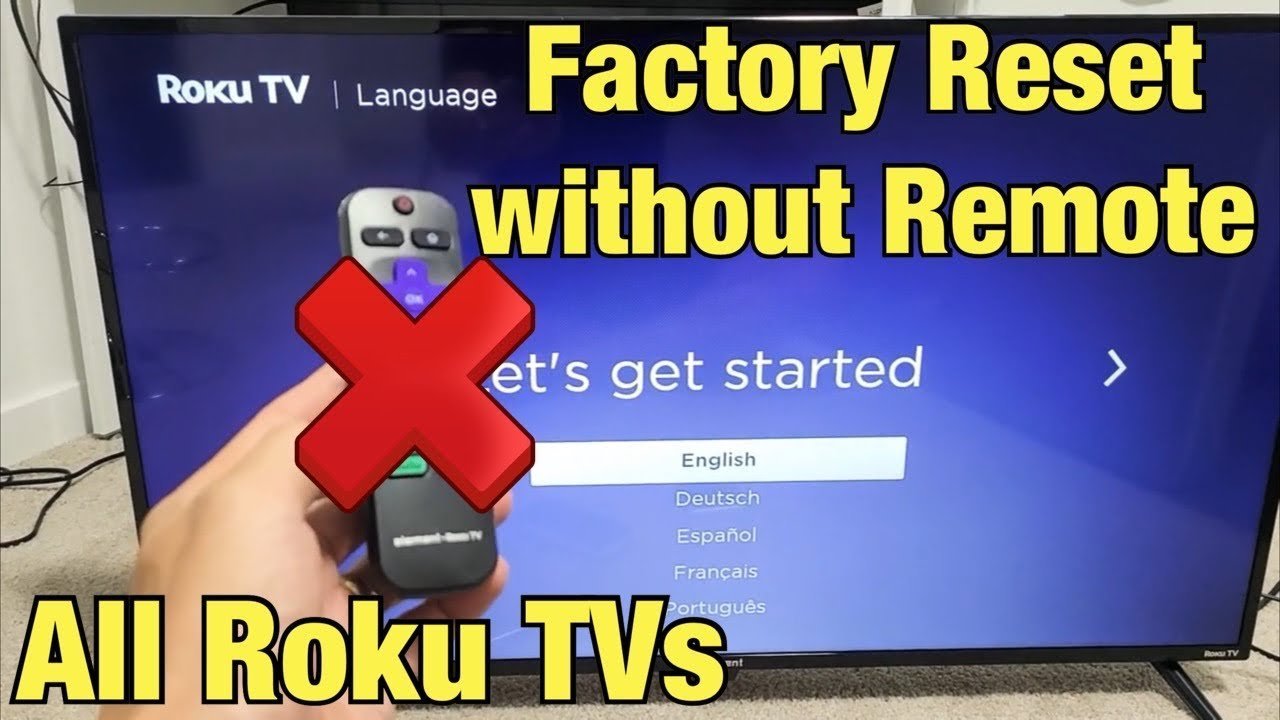
- Switch on the personal hotspot feature on phone 1, setting the hotspot name and password to the exact details of the Wi-Fi network your Roku used before the reset.
- Turn on the Wi-Fi connection on phone 2 and join the hotspot broadcast coming from phone 1.
- Plug the Roku power cable into the wall outlet, allowing 60 seconds for the initial bouncing logo animation to stop on the television screen.
- Check phone 1’s hotspot settings screen to confirm that one connected client appears on your active list, which means the Roku joined your temporary network.
- Launch the mobile software on phone 2; you can review the Roku mobile app guide to see compatible operating systems before pairing.
- Tap the “Devices” tab in the bottom corner of phone 2, then select your Roku model when it appears on the scan screen.
- Tap the digital remote icon on phone 2 to open the directional arrow pad, testing the connection by pressing the down button once to highlight a language on your TV.
- Use the directional buttons on phone 2 to complete the on-screen setup prompts, entering your Roku account email address when the prompt requests it.
- Open the Roku settings menu on your TV screen using the digital pad, select “Network,” choose “Set up connection,” and pick your permanent home Wi-Fi name.
- Turn off the mobile hotspot on phone 1 once the TV shows connected, then switch phone 2 back to your normal household internet.
How to Know It Worked
A bright purple checkmark displays on the TV screen next to your network name when the link succeeds. If X is visible on the signal bar, do A: restart the hotspot phone; if the signal shows three solid green bars, do B: continue directly to the home screen. The television will play a two-tone chime through the speakers once the setup finishes. Your phone interface will also show the active channel grid within 3 seconds of pairing. If the TV stays stuck on the language selection screen without moving when you press arrows on phone 2, the phone and the Roku aren’t sharing a local subnet. In that situation, repeat the network credentials check on your hotspot device.
If Something Goes Wrong
| What happened | Why | What to do |
|---|---|---|
| App can’t find device | Phone on different network | Connect phone to identical hotspot band |
| Hotspot shows zero clients | SSID spelling error | Re-enter old Wi-Fi name carefully |
| Remote buttons do nothing | App lost pairing signal | Force close app and restart it |
| Screen prompts for ethernet | Stick model lacks port | Use mobile hotspot method instead |
| TV shows wrong password | Hotspot uses WPA3 security | Change hotspot security to WPA2 |
| Device loops on restart | Low power from USB | Use original wall plug adapter |
How Often to Do This
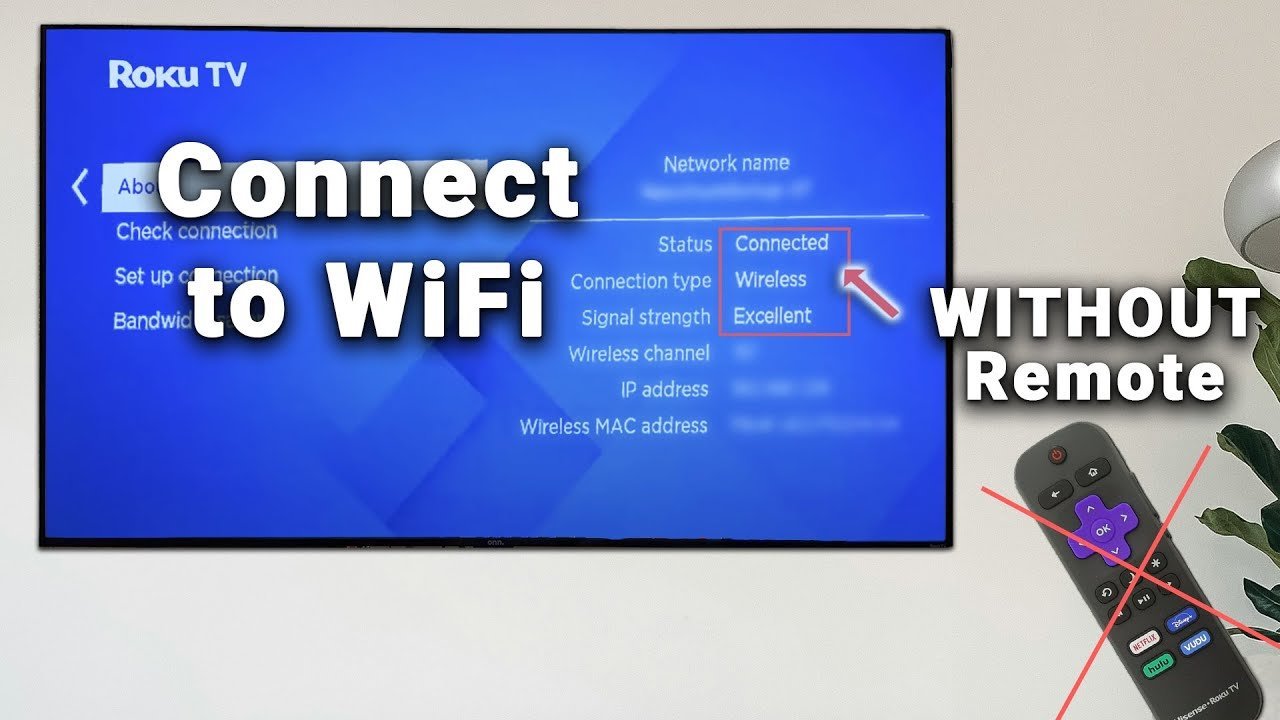
You only need this procedure once after wiping system memory, or whenever you move a wiped box to a new house without its remote. The trade-off of using a mobile hotspot is spending your cellular mobile data balance during the initial setup updates, so connect the Roku back to standard home broadband as soon as you finish. Changing your home router hardware or resetting your network password moves this schedule, forcing you to run these steps again. A standard mistake is mistyping a single capital letter in your hotspot name, which costs you 15 minutes of repeating failed connections. Keep your original Wi-Fi details written on a label under the streaming unit to avoid setup delays later. This varies by model — check the label on your Roku unit for exact hardware limits.
Frequently Asked Questions
Can I Set Up Roku Using Only One Phone?
No, because a single phone can’t run a hotspot and connect to its own broadcasted network at the same time. You need the second phone to run the remote application on that shared local signal. An ethernet cable eliminates the need for any second phone if your player has a network port.
Why Won’t My Roku Connect to the Hotspot?
Your mobile hotspot band is set to 5 GHz, while many basic Roku models only detect 2.4 GHz frequencies. Open your phone hotspot configuration menu, switch the broadcast toggle to “Maximize Compatibility” or “2.4 GHz,” and restart the Roku by removing the power cable for 10 seconds.
How Long Does the Network Setup Step Take?
About 3 minutes if your hotspot credentials match your old router settings. The Roku detects the familiar name instantly during startup. If the device downloads a mandatory firmware update immediately after connecting to your phone, allow 5 to 10 extra minutes depending on your cell speed.
Does a Universal Remote Work Without Wi-Fi?
Yes, simple infrared universal remotes work right away with regular Roku boxes and Roku televisions without any internet pairing step. They don’t work on Roku Streaming Sticks plugged behind the TV, because sticks don’t possess an infrared receiver on their outer plastic casing.
Is It Safe to Use Mobile Hotspot Data for This?
Yes, it’s completely safe for your device hardware, but you must monitor your cellular data limit. Initial Roku activation often downloads a fresh system update of around 150 megabytes. Switch the streaming unit over to your home broadband connection immediately before downloading any video channels.
What Happens If I Forget My Old Wi-Fi Password?
You can’t use the wireless hotspot bypass method described here. You must connect the Roku to an internet router using an RJ-45 cable, or purchase a cheap infrared replacement remote. Streaming sticks without an ethernet jack will require buying a dedicated Roku voice remote.
Once you’re back on your home screen, go ahead and turn on the mobile app’s private listening feature. It lets you plug headphones into your phone so you won’t bother anyone else in the room. You’ll love having your favorite shows playing while the rest of the house stays quiet.