Reset File Explorer in Windows 11 using PowerShell by stopping the explorer process and wiping view cache registry settings using taskkill /f /im explorer.exe followed by removing the Streams and FolderTypes subkeys. This clears stuck folders, fixes frozen toolbars, and restarts your desktop shell in about 10 seconds.
This works because Windows stores your view preferences, cache, and open folder states inside the current user registry hive. Deleting those keys forces the system to rebuild fresh default settings the moment the task restarts.
The single biggest mistake is running commands while active file transfers are running. If you kill the process mid-transfer, you risk corrupted files and lost clipboards, so always close your open copy windows first.
Running the Reset Commands
- Right-click the Start menu button on your taskbar and select Terminal or PowerShell.
- Type
taskkill /f /im explorer.exeand press Enter to stop the desktop interface. Tip: Your screen will turn black and the taskbar will disappear; this is completely normal. - Paste
Remove-Item -Path "HKCU:\Software\Microsoft\Windows\CurrentVersion\Explorer\Streams" -Recurse -Forceand press Enter to wipe saved folder view settings. - Paste
Remove-Item -Path "HKCU:\Software\Microsoft\Windows\CurrentVersion\Explorer\FolderTypes" -Recurse -Forceand press Enter to clear custom layout templates. - Type
Start-Process explorer.exeand press Enter to bring back your desktop, icons, and taskbar.
For advanced command options, review the Microsoft Learn Stop-Process documentation to manage running tasks safely. Note that this guide isn’t for managed school or workplace PCs where group policies block registry edits. The trade-off here is clear: you fix system crashes instantly, but you lose custom folder layouts and pinned quick-access items.
How Long It Takes
The commands execute almost instantly, but your hardware speed changes the exact time.
| Situation | How long | What changes it | What to watch for |
|---|---|---|---|
| Standard SSD laptop | 5 to 10 seconds | Background CPU usage | Instant screen flash |
| Older mechanical hard drive | 20 to 30 seconds | Disk read-write speed | Delayed taskbar return |
| Heavily corrupted user profile | 15 to 45 seconds | Registry hive size | PowerShell pause on remove commands |
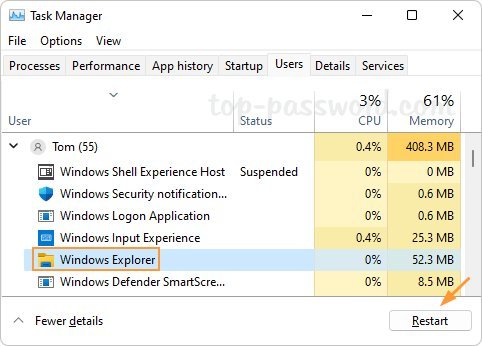
If the screen stays black for longer than 60 seconds, press Ctrl + Shift + Esc on your keyboard, click Run new task, type explorer.exe, and press Enter.
How to Tell When It’s Done
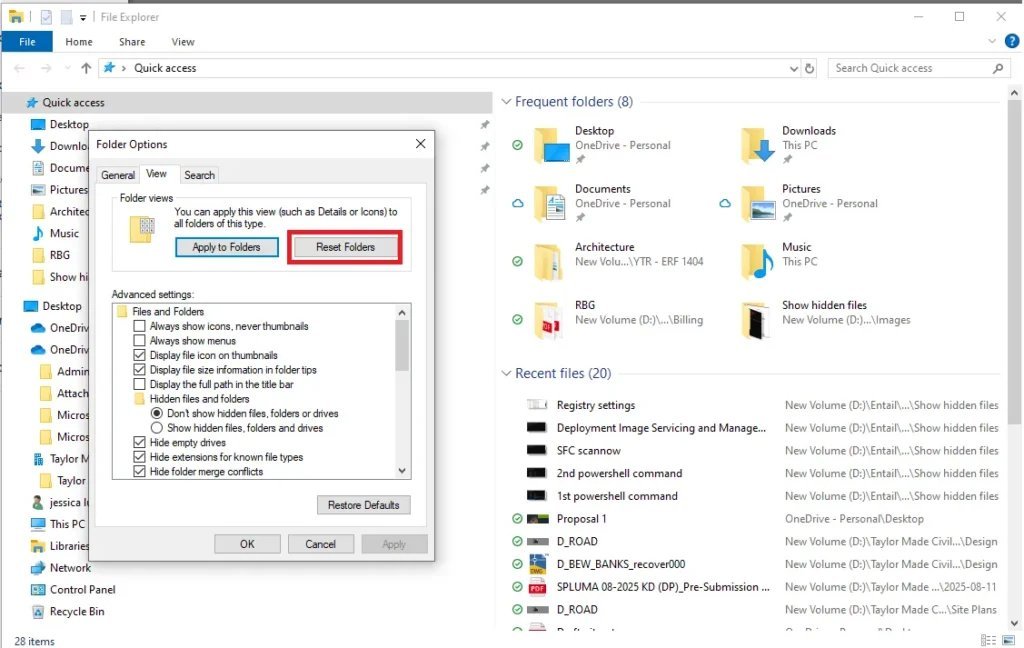
Your taskbar, Start button, and desktop icons will reappear on the screen right away. Open a new folder by pressing Windows Key + E to verify the reset worked. The window should launch without lag, displaying the original factory view settings. If you want a quick decision rule: if folders open smoothly, your job is complete; if the window still hangs or crashes, your Windows system files need repair.
Mistakes That Ruin It
- Forgetting to restart the process: Leaving the shell stopped leaves you with a blank screen. Always run
Start-Process explorer.exeimmediately after running the delete commands. - Deleting the parent Explorer key: Removing the entire root registry path erases custom shell extensions and pinned shortcuts that you can’t restore. Only delete the specific child paths like
StreamsandFolderTypesto stay safe. - Typing wrong paths in PowerShell: Misspelling paths causes the console to throw red error text without applying fixes. Copy and paste the exact command strings instead of typing them manually.
Frequently Asked Questions
Will Running This Command Delete My Personal Files?
No, it will never delete personal files like documents, pictures, or downloads. The script only removes cached view settings, window dimensions, and temporary layout registries stored in your user profile.
Can I Run This Without Administrator Privileges?
Yes, you don’t need administrator privileges because the commands only modify the current user hive (HKCU). Windows allows standard user profiles to reset their own layout caches freely.
Why Did My Desktop Icons Disappear After the First Command?
Your icons disappeared because explorer.exe manages the graphical user interface. Once you start the process again at the end of the steps, everything returns to your screen.
Is It Safe to Reset Explorer When Apps Are Open?
Yes, it’s safe for background apps like browsers or music players, which will keep running untouched. However, save work in open text editors first to avoid any accidental application freezes.
What Happens If the Taskbar Doesn’t Come Back?
If the taskbar fails to appear, press Ctrl + Alt + Delete to launch the Task Manager directly. Click Run new task, enter explorer.exe, and hit Enter to restore your desktop shell manually.
Related guides