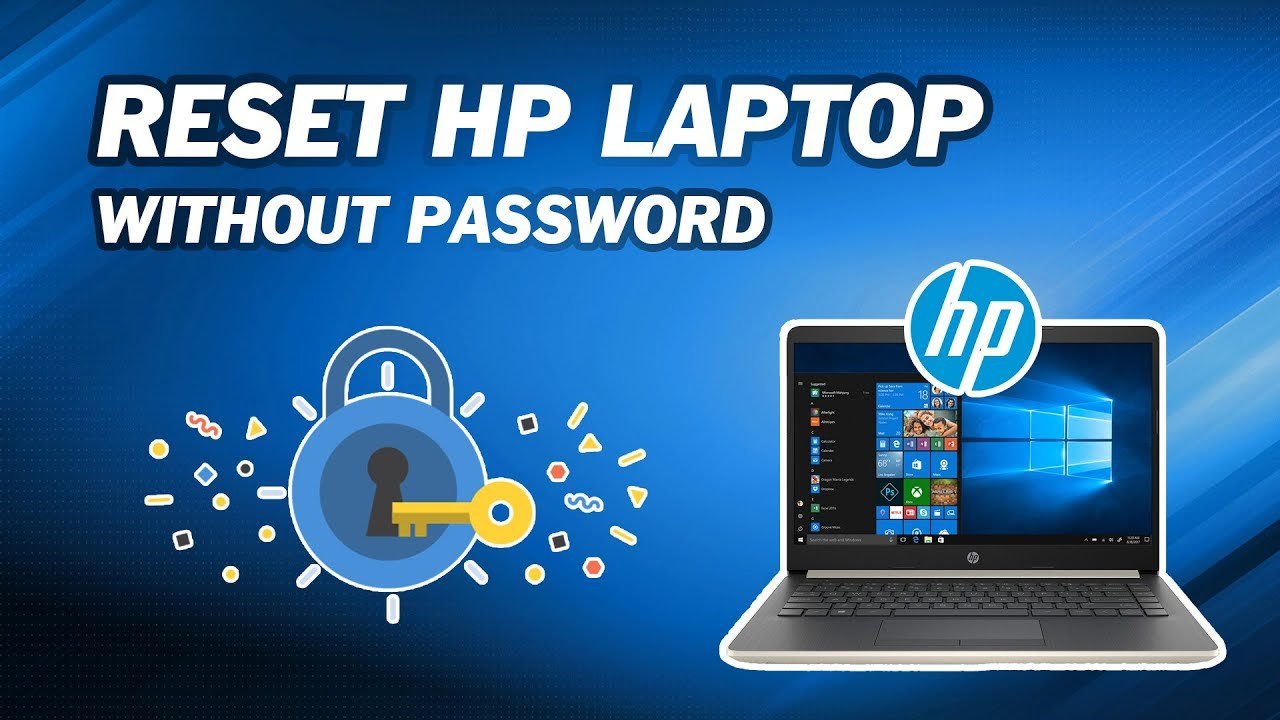
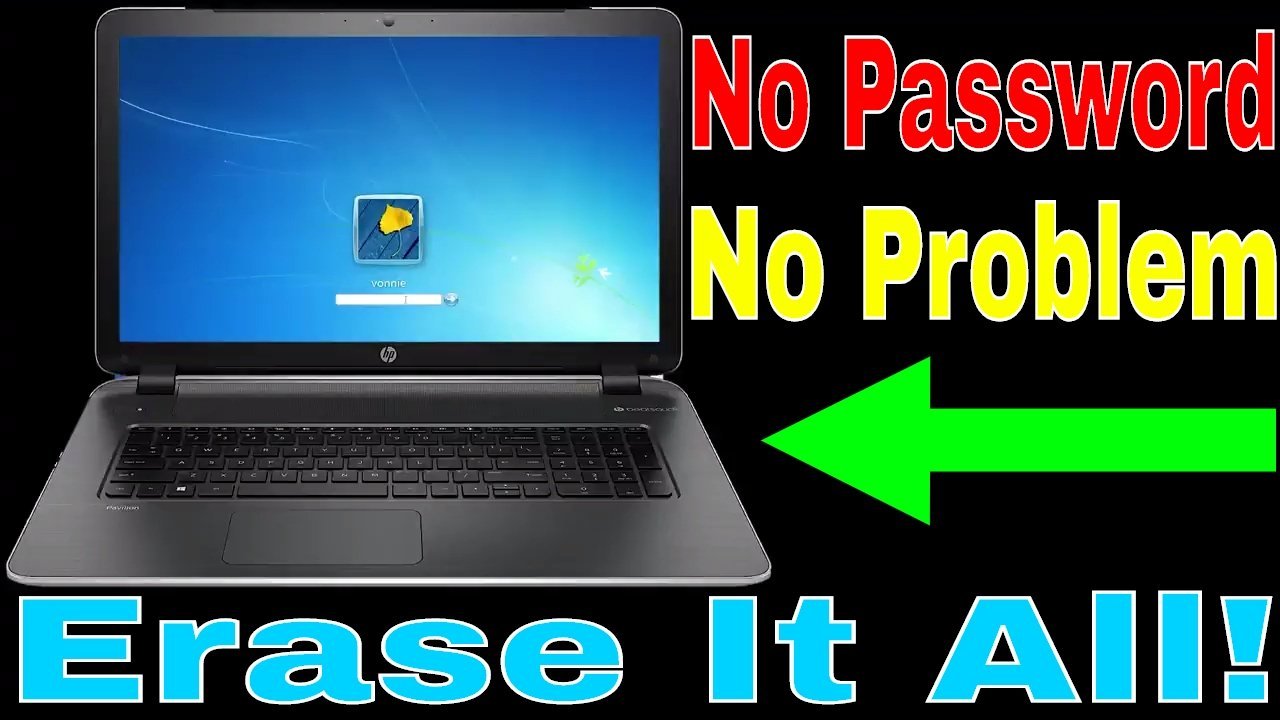
To reset your laptop without a password, hold the Shift key while clicking Restart on the login screen, which opens the Windows Recovery Environment in under 2 minutes. From that blue recovery screen, choosing Troubleshoot and then Reset this PC wipes the lock screen and lets you start fresh immediately.
The recovery menu bypasses your locked user account entirely because it runs from a separate system partition. If your computer’s drive has BitLocker turned on, you can’t bypass that encryption key; attempting a reset without the 48-digit key forces a total drive wipe instead of saving any files.
This process isn’t for stolen devices or managed workplace machines protected by corporate enrollment. This varies by model — check the label or maker’s manual if your brand uses a custom recovery hotkey instead.
Reset Your Laptop Without a Password at Sign-In

- Plug your laptop into its AC wall charger to ensure power won’t cut out during setup.
- Click the Power icon in the bottom-right corner of your locked sign-in screen.
- Hold down the Shift key on your keyboard and click Restart without letting go of Shift until the blue screen appears. Tip: Keep Shift pressed down for at least 5 seconds until the screen turns black and displays the recovery menu.
- Select Troubleshoot from the list of options, then click Reset this PC.
- Choose Remove everything to clear the forgotten password completely, or select Keep my files if BitLocker isn’t active. Tip: If you choose Keep my files, do A; if you choose Remove everything, do B — removing everything provides the cleanest slate with the lowest chance of setup errors, though the trade-off is losing non-backed-up documents.
- Click Local reinstall, choose Just remove my files, and confirm by clicking Reset. If you need step-by-step guidance for cloud downloads, refer to Microsoft’s recovery options guide.
How Long It Takes
The total reset time depends mostly on whether your laptop uses a solid-state drive or a mechanical hard drive.
| Situation | How long | What changes it | What to watch for |
|---|---|---|---|
| SSD drive with Local Reinstall | 20 to 35 minutes | Processor speed and drive bus | Screen going black for 1-2 minutes |
| Traditional hard drive (HDD) | 1 to 2.5 hours | Mechanical disk read/write speed | Disk activity light blinking steadily |
| Cloud download reinstall | 45 to 90 minutes | Home internet download speed | Percentage meter pausing at certain marks |
If the screen stays stuck on a single percentage for over 3 hours with no hard drive activity light, hold the power button for 10 seconds to shut down, then restart.
How to Tell When It’s Done
A completed reset shows the Windows initial out-of-box experience screen, asking for your region, language, and keyboard layout. You won’t see your old lock screen or profile photo anymore. The cooling fans usually quiet down because the processor is no longer writing system files. To be completely sure the reset succeeded, complete the language prompt and create a brand-new user profile without entering any old credentials.
Mistakes That Ruin It
- Unplugging the laptop charger: A dead battery mid-installation corrupts the core boot files and breaks the machine. Always keep the power adapter connected to the wall before starting.
- Choosing Cloud Reinstall on metered connections: Downloading Windows uses over 4 gigabytes of network data and can fail on slow Wi-Fi. Pick Local reinstall to install directly from the internal recovery image.
- Assuming personal files will survive without a backup: Picking the wrong wipe setting deletes photos and documents permanently. Use regular cloud backups beforehand so you don’t lose irreplaceable data during emergency resets.
Frequently Asked Questions
Can I Reset My Laptop Without Losing My Files?
Yes, you can choose the Keep my files option inside the recovery menu. This setting removes your account passwords, apps, and system settings while preserving everything saved inside your personal user folders, such as Documents, Downloads, and Desktop.
What Happens If I Forget My Bitlocker Key?
You must choose the Remove everything option and format the drive. Windows can’t decrypt your personal storage without that 48-digit key, so wiping the entire disk is the only method to make the laptop usable again.
Why Does My Screen Say Preparing Automatic Repair?
This happens when the laptop shuts down improperly twice in a row. Windows starts this diagnostic check automatically to fix corrupted startup files, after which it opens the same blue recovery screen needed to perform a reset.
Is It Safe to Turn Off the Laptop During a Reset?
No, cutting the power can corrupt the boot sector completely. If you interrupt Windows while it writes system files, the laptop might refuse to turn on, forcing you to use a bootable USB drive to fix it.
How Long Does a Factory Wipe Take on an Old Laptop?
It usually takes between 1 and 2 hours on older machines with spinning hard drives. The age of the internal components and the amount of data being overwritten will slow down the overall process.
Once your computer turns back on, take a few minutes to write down your new login details in a notebook. You’ll also want to create a password reset USB drive right away. It’s a quick habit that saves you from going through this headache ever again.