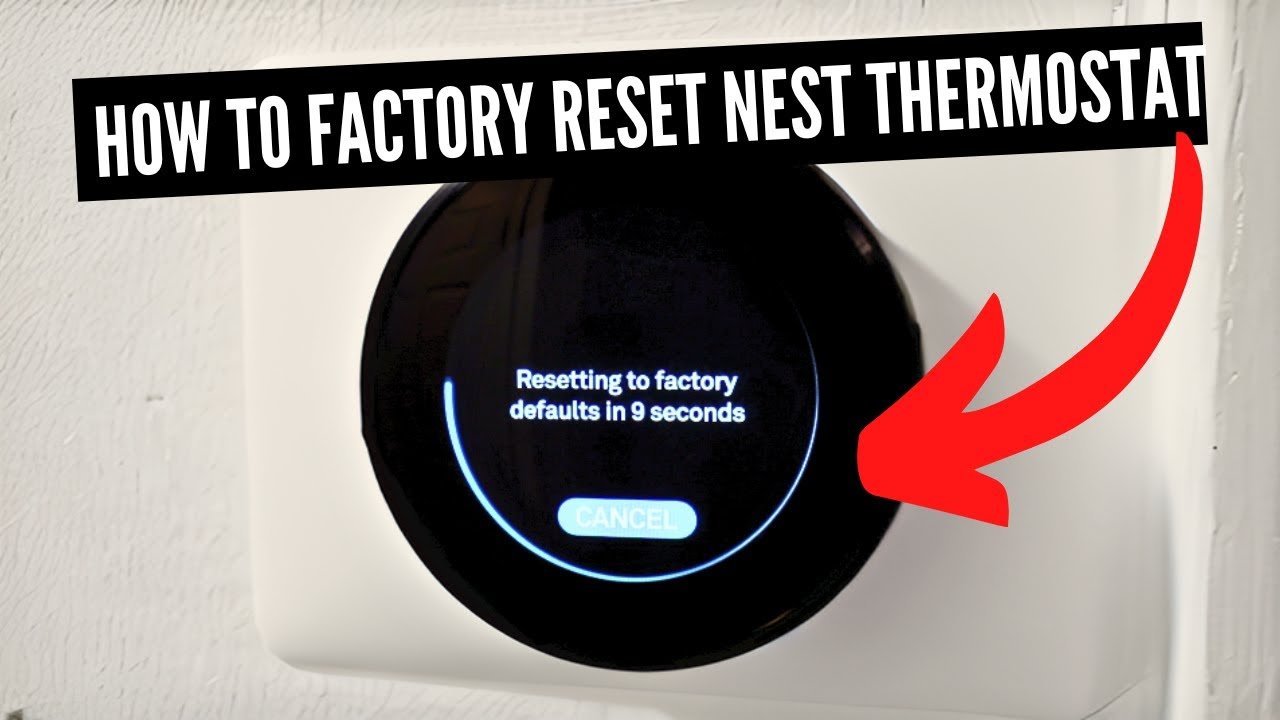
Resetting your Nest thermostat takes about 3 minutes by opening Settings, choosing Reset, and selecting All Settings to wipe your personal data completely. This full wipe suits homeowners who plan to move out or transfer ownership to someone else.
Things to Prepare Before Resetting Your Nest Thermostat
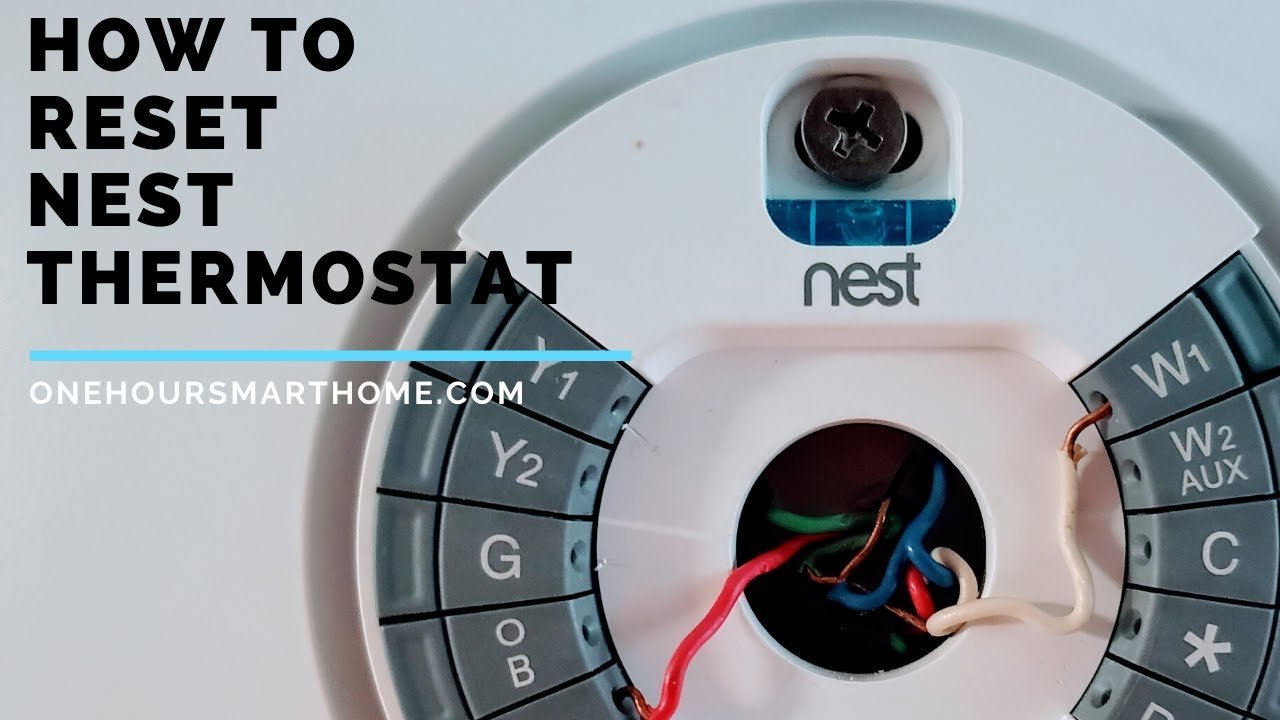
Before you start, make sure you’ve gathered these items right by the wall:
- Your physical Nest display unit connected to its wall baseplate
- Your 4-digit master PIN code (if you previously locked the screen settings)
- Your primary Wi-Fi network name and password to reconnect afterward
- Access to the Google Home app or Nest app on a mobile phone (for account removal)
Using the built-in menu works for most generations of the thermostat. In contrast, flipping off your home circuit breaker doesn’t work for a factory wipe because the built-in battery saves your data. If your system controls high-voltage 120V electric baseboard heat, you’ll need a licensed electrician to handle any wiring work safely.
Step-by-Step
- Press the display ring inward once to open the Quick View menu on your screen.
- Turn the outer ring clockwise until you reach the Settings gear icon, then press to select it.
- Turn the ring to browse the menu until you highlight the Reset option, then press down.
- Select All Settings to erase everything, or choose Restart if you only want to reboot a frozen screen.
- Turn the ring to select Reset again to confirm your choice. Careful: Choosing All Settings completely deletes your heating schedule, Wi-Fi link, and learned temperature preferences.
- Turn the ring to move the slider dial all the way to the right side, or turn it through a full 360-degree rotation when prompted. Tip: If you set a 4-digit PIN earlier, enter it now by turning and pressing the ring; without it, you can’t finish the wipe from the wall.
- Wait 2 to 3 minutes while the screen turns black and the small light at the top flashes until the setup welcome screen appears. Tip: Don’t pull the screen off the baseplate while the light is flashing, or you’ll corrupt the storage.
If the unit displays an error code about a missing common wire or power short, stop your reset and call a certified HVAC technician to test your equipment safely.
Options for Different Settings
The table below shows what happens across the different wipe levels available on your thermostat hardware.
| Reset Choice | Time Needed | What Gets Cleared | What to Watch For |
|---|---|---|---|
| Restart | 1 to 2 minutes | Clears RAM memory only | Display turns black, then reboots |
| Schedule | Under 1 minute | Temperature daily routine | Thermostat stays on current target |
| Network | 1 minute | Wi-Fi name and password | Red disconnected icon shows up |
| All Settings | 3 to 4 minutes | All data, apps, and links | Initial language selection prompt |
This varies by model — check the label on the back of your display to confirm if you own a Learning Thermostat or a base Nest Thermostat. It’s always safer to start with a basic network wipe before you wipe all settings, so you don’t lose a working heating schedule by accident.
How to Tell You Did It Right
A clean wipe shows the original setup screen, asking you to pick your language and connect to Wi-Fi. A failed wipe takes you straight back to your regular target temperature display with your old schedule running. This happens because Google ties the device serial number to cloud servers until you remove it inside the mobile app. To prevent this, remove the thermostat from the Google Home app, reboot your home router, and check that the unit shows no linked account in the Technical Info menu.
Google Home Rules and Device Removal
After completing the wipe, open the app, tap your thermostat, select Settings, and choose Remove Device. Next, safely store your paper PIN records and restore your daily heating schedule if you plan to keep the unit. A full wipe lasts permanently until someone pairs the thermostat to an active phone again. If your heating equipment requires opening mains-powered 240V junction boxes during a replacement, hire an HVAC technician to prevent dangerous electric shocks.
Other Ways to Reset
Using the Google Home App
Open the app, select your thermostat, open Settings, and tap Remove Device. This disconnects the hardware from your cloud profile within seconds without forcing you to touch the wall unit. You’ll still need to reset network data on the physical wall ring afterward.
Holding the Display Ring
Press and hold the entire screen inward for 10 straight seconds until the display turns off. This triggers a hardware reboot, which costs nothing and takes under 2 minutes. It clears temporary software freezes without deleting your saved preferences or your Wi-Fi details.
Factory Reset via Touch Strip
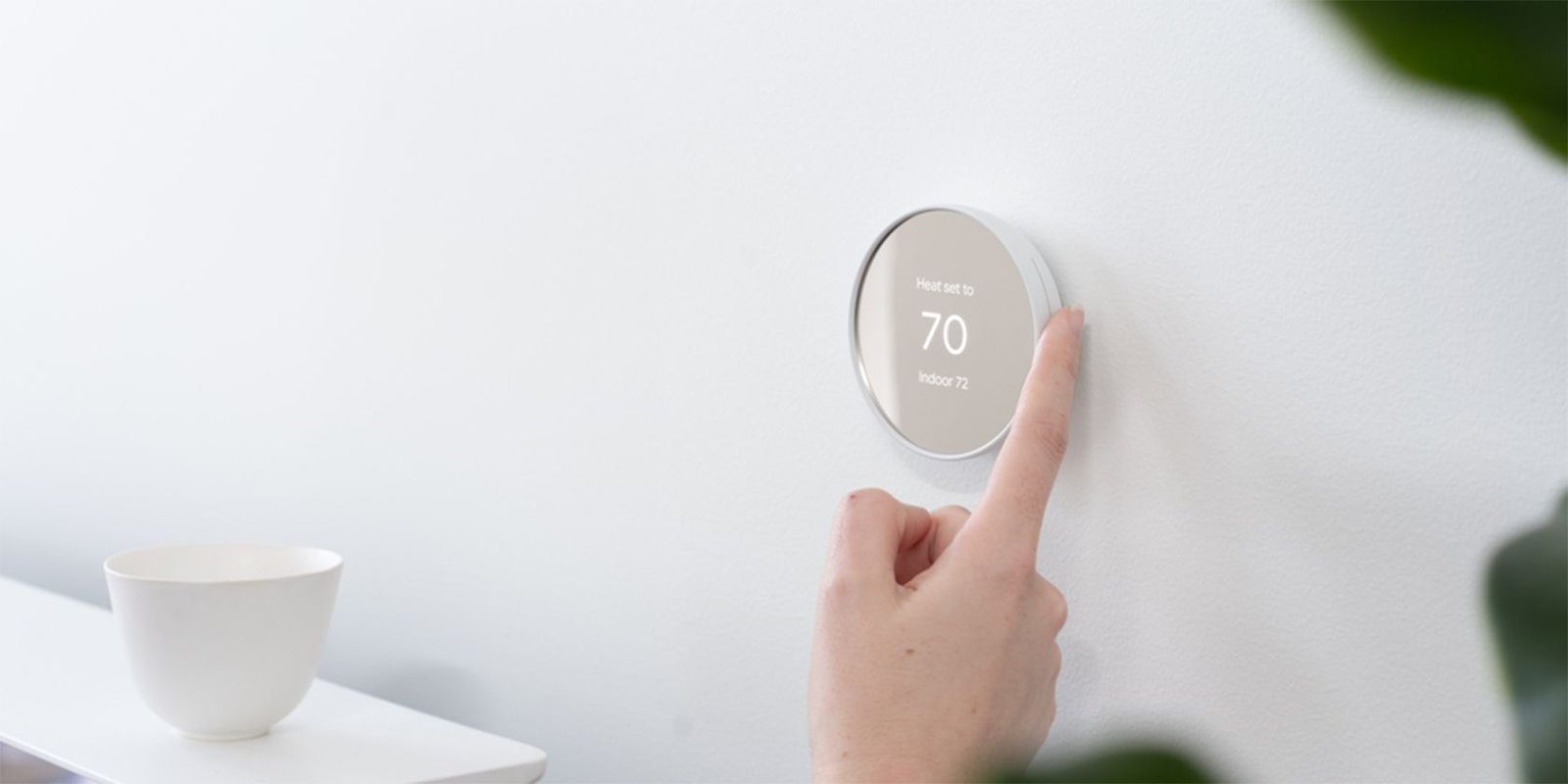
On the 2020 mirror-face Nest Thermostat, swipe open the right-side touch strip menu, select Settings, and pick Factory Reset. This uses the side sensor instead of a rotating ring. The process takes 3 minutes and clears all personal settings completely.
Frequently Asked Questions
Can I Reset My Thermostat Without a Wi-Fi Connection?
Yes, you can run a full reset from the physical wall unit even if your internet is completely offline. The thermostat stores its core operating system locally. You’ll only need active Wi-Fi later when you decide to pair it with a mobile app again.
What Happens If I Forget My 4-Digit Pin?
You must unlock it through the mobile app you paired it with, or contact official Nest support with your serial number. The device won’t let you bypass a lock PIN directly from the wall menu. This security safeguard stops guests from erasing your climate settings.
How Long Does a Factory Reset Take?
Between 2 and 4 minutes from the moment you turn the confirmation dial. The screen will shut off, the LED will blink continuously, and the device will restart itself. Don’t remove the display from the wall plate while this cycle finishes.
Is It Safe to Reset During Freezing Weather?
No, because the reset turns off your heating system until you complete the initial setup steps again. If indoor temperatures are near freezing, finish the setup wizard immediately after the reboot. Leaving it unconfigured keeps your furnace off, which can risk frozen water pipes.
A local reset wipes wall data, but the cloud lock remains active.