How to reset screen time passcode settings without losing data: open your device Settings, tap Screen Time, select Change Screen Time Passcode, tap “Forgot Passcode?”, and enter the Apple ID credentials used when setting up the lock. You’ll set a new 4-digit code immediately.
Your device needs an active internet connection to verify your Apple ID with Apple’s authentication servers. The single most common mistake is entering the device’s main lock screen PIN instead of the specific Apple ID password linked during the feature’s setup.
This guide isn’t for managed school or corporate devices with Mobile Device Management (MDM) profiles, which block manual passcode overrides.
Resetting Your Screen Time Pin
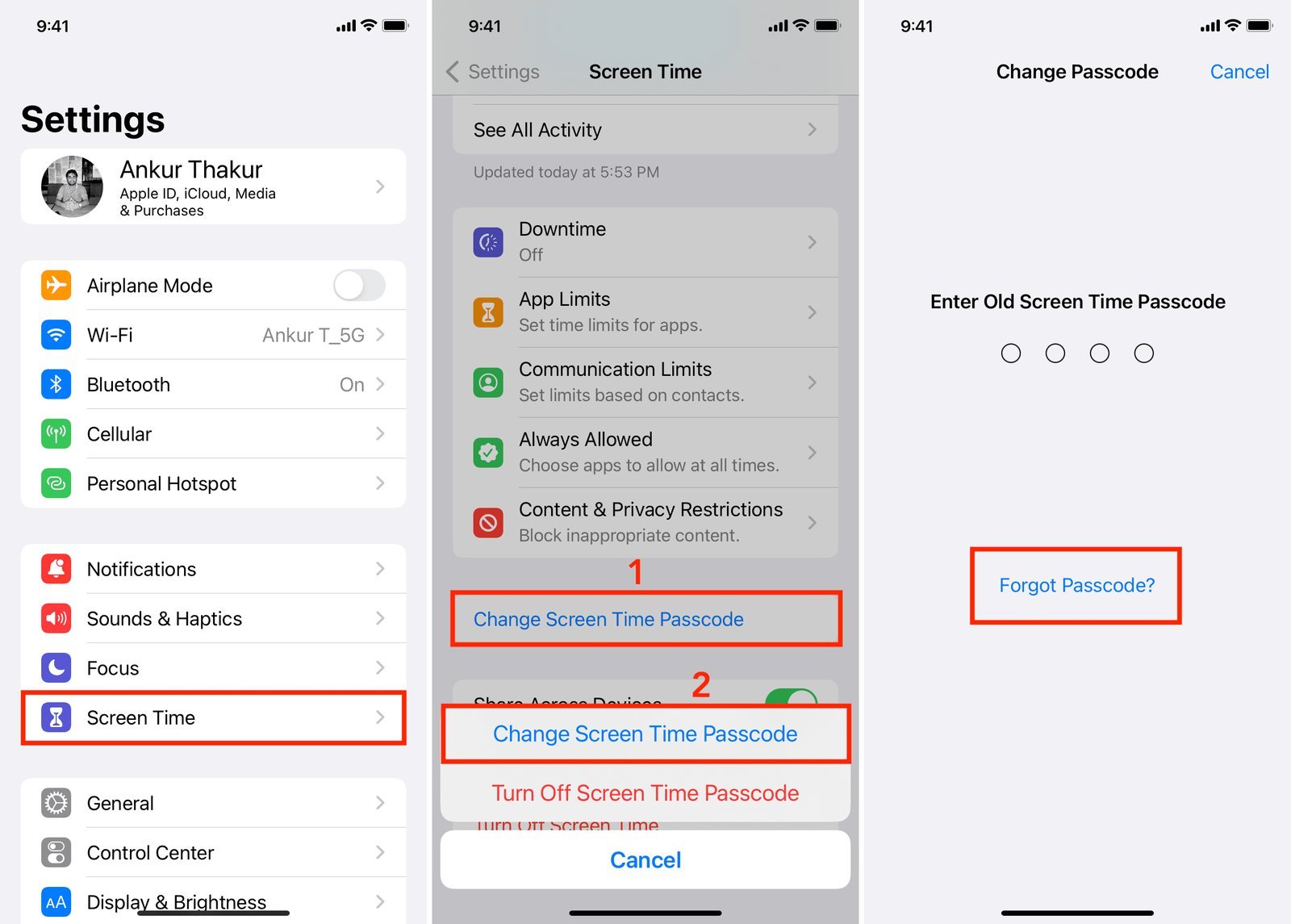
- Open the Settings app on your iPhone or iPad and tap Screen Time.
- Scroll down and tap Change Screen Time Passcode, then tap it a second time in the pop-up menu.
- Tap the blue Forgot Passcode? link on the keypad screen. Tip: If this link doesn’t appear, your device is running outdated software or was configured without an Apple ID recovery option.
- Enter the exact Apple Account email and password originally assigned to recover this code, as documented in Apple’s Screen Time passcode recovery guide.
- Type a new 4-digit passcode, then type it a second time to confirm the change. Tip: If managing a child’s device via Family Sharing, perform these steps entirely from the parent’s device under Settings > Screen Time > [Child’s Name].
Here is the decision rule: if you know the recovery Apple ID password, reset the PIN in Settings; if you forgot that password too, you must reset the Apple ID itself through Apple before touching Screen Time.
Choosing a code reset trades convenience for safety: you keep your photos and apps, but you lose quick access if your Apple ID has two-factor authentication prompts sent to a lost number. An honest limit applies here: screen layouts vary by iOS version, so check the system software version in Settings > General > About if buttons look different.
How Long It Takes
Resetting this passcode takes only a couple of minutes under normal conditions.
| Situation | How long | What changes it | What to watch for |
|---|---|---|---|
| Personal device with saved Apple ID | 1 to 2 minutes | Wi-Fi or cellular data speed | “Forgot Passcode?” prompt loading |
| Child device via Family Sharing | 2 to 4 minutes | Cloud sync between family devices | Correct child profile selection |
| Device with forgotten Apple ID login | 15 to 30 minutes | Password reset through account recovery | Two-factor verification delays |
If the screen stays stuck on the loading circle for more than 5 minutes, restart the device and verify your internet connection.
How to Tell When It’s Done
The process is complete when the numeric keypad disappears and returns you to the main Screen Time menu without an error banner. You can verify the result immediately: tap Downtime or App Limits, and the screen will ask for your new passcode. Enter the 4-digit combination you just created. If the menu opens instantly, the new PIN is active. If the prompt shakes or rejects the input, the device didn’t save the update, and you’ll need to enter the recovery credentials again.
Mistakes That Ruin It
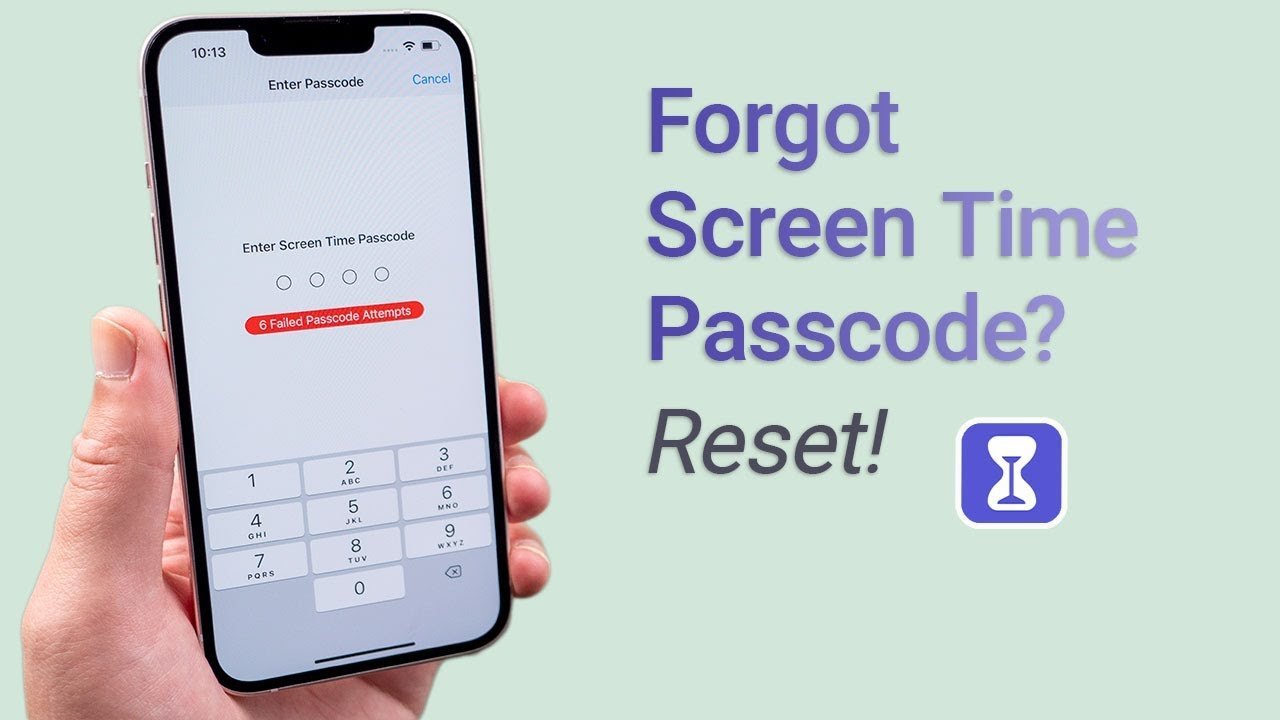
- Entering the device lock PIN repeatedly: The device disables passcode attempts for up to 60 minutes after multiple failures. Wait out the timer or use the “Forgot Passcode?” option immediately instead of guessing.
- Using the child’s Apple ID instead of the parent’s: The prompt rejects the login credentials because the parent account controls the restriction. Enter the family organizer’s Apple ID details to bypass the prompt.
- Attempting a full device erase without a backup: Erasing the phone removes the code but destroys all personal photos, messages, and files forever. Always create an iCloud or computer backup before attempting any system wipe.
Frequently Asked Questions
Can You Reset a Screen Time Passcode Without an Apple Id?
No, you can’t bypass the prompt directly without the linked Apple ID credentials. If no recovery account was assigned during setup, your only option is to erase the device completely using a computer and set it up as a new device without restoring an old backup.
What Happens After 10 Failed Screen Time Passcode Attempts?
The device won’t erase itself, but it locks you out of Screen Time settings for 60 minutes. You can’t guess further combinations until that countdown expires, though phone calls and regular apps stay usable unless blocked by an active downtime schedule.
Why Is There No Forgot Passcode Option on My Screen?
The device is either running an operating system older than iOS 13.4 or the passcode was created without entering an Apple ID for recovery. Updating your iOS version through Settings may restore the link, provided the system still holds your account details.
Is the Screen Time Passcode the Same as the Lock Screen Password?
No, they’re separate security numbers with different purposes. The lock screen password unlocks the device display, while the Screen Time passcode protects privacy restrictions and app limits. They only match if you intentionally entered the same 4 digits for both.
Does Erasing All Content Remove the Screen Time Passcode?
Yes, a factory reset wipes the passcode along with all data on the device. However, restoring a previous iCloud backup that already contains the restriction will bring the forgotten passcode right back, making the reset useless. You must set up the device as new.